WPkeeper checks every site from the outside, every minute by default, and raises an alert when something goes wrong. You choose which alerts reach which channel.
Uptime
Uptime lists every site with its state, uptime over 24 hours, 7 days and 30 days, and its last check.
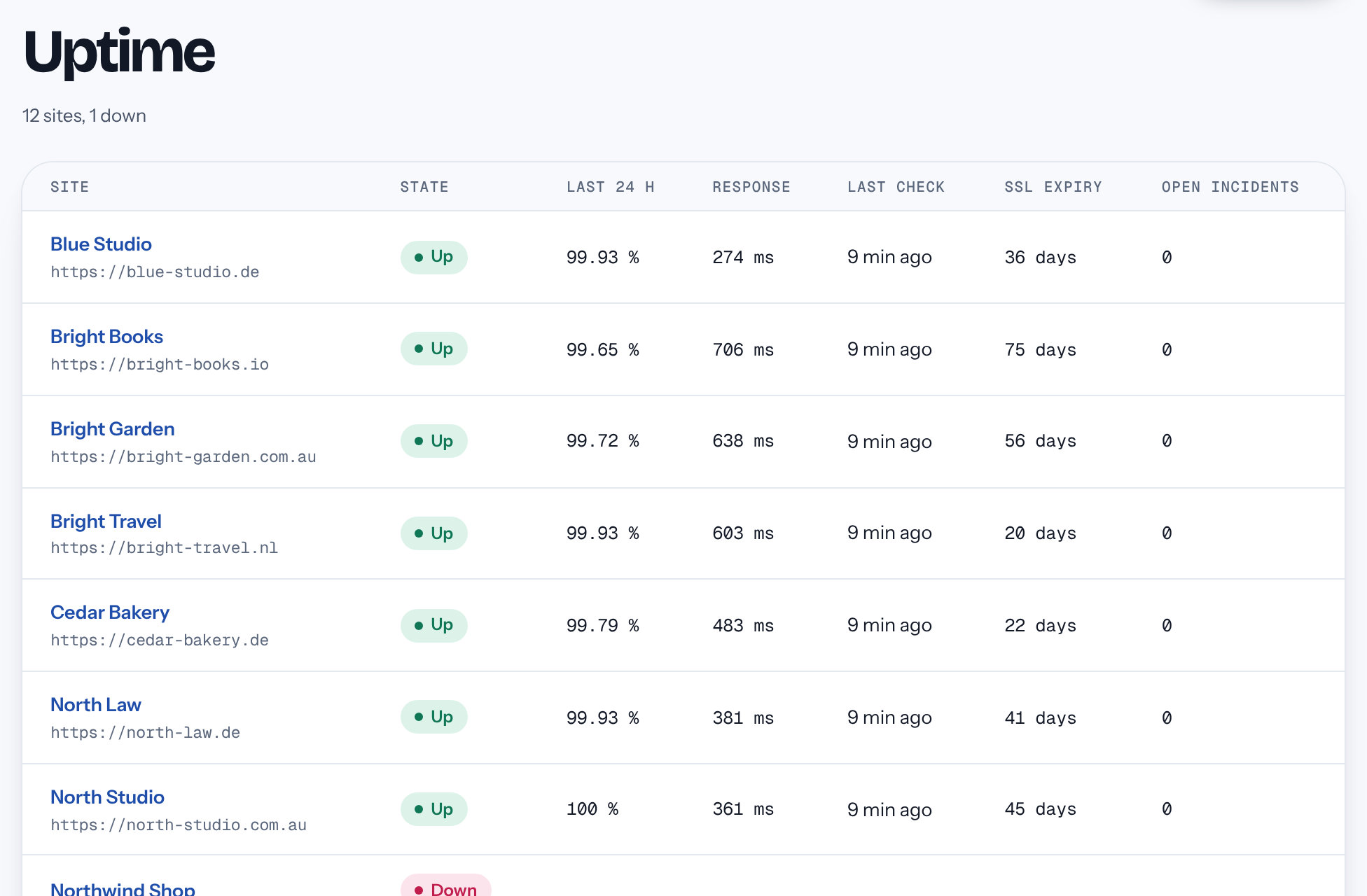
A check does more than look at the HTTP status. It follows redirects on the same host and fails when the page:
- shows a PHP or WordPress error, such as "There has been a critical error" or "Error establishing a database connection", or the maintenance page;
- answers with an error status, or redirects to another site;
- is blank, cut off before its end, not a web page, or a host or CDN error page (such as a Cloudflare 52x page);
- has no sign of WordPress, or is much smaller than usual;
- does not contain the keyword you set, if you set one.
A site is down after 3 failed checks in a row, and you get a "Site down" alert. The first good check ends the incident and sends "Site recovered".
A site behind a password (HTTP auth on a staging site) counts as up: the server answers, the check just cannot see the page.
A site's uptime
Open a site and go to Uptime for its response times, incidents and recent checks.
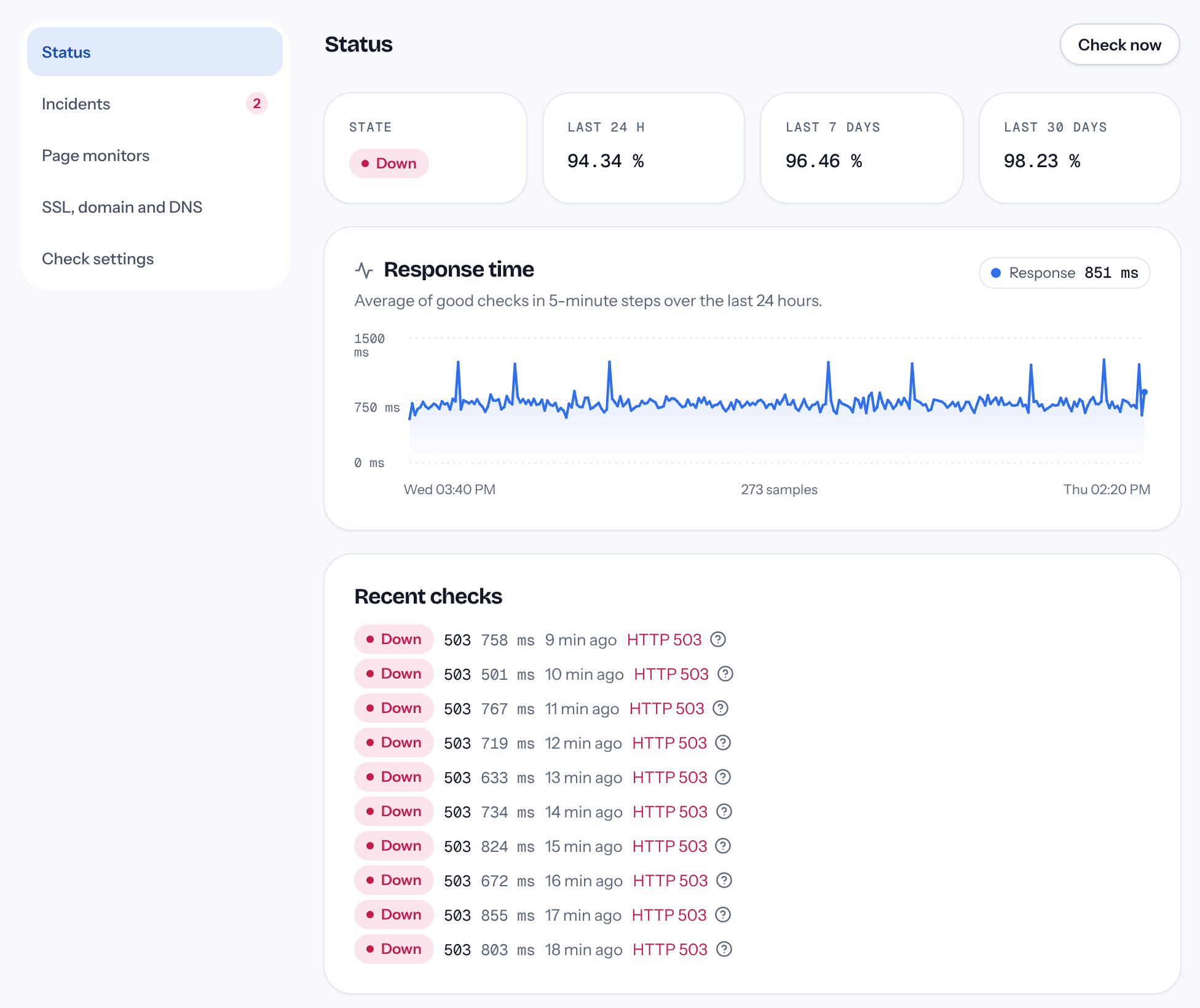
Here you can:
- press Check now to run a check at once;
- set a keyword that must be on the page, or turn checks off for this site, under Uptime checks;
- add page monitors for other pages that matter, such as the shop, the cart or the contact form. Each page monitor has its own alert after the number of failed checks you choose;
- open How a check is judged to see every rule, and press the ? next to a failure to see what the check saw and what to do.
The account defaults (check every site, the interval, a keyword and how long checks are kept) are in Settings → Alerts and monitoring.
SSL and domains
SSL and domains shows each site's certificate, domain registration and DNS. They are checked once a day.
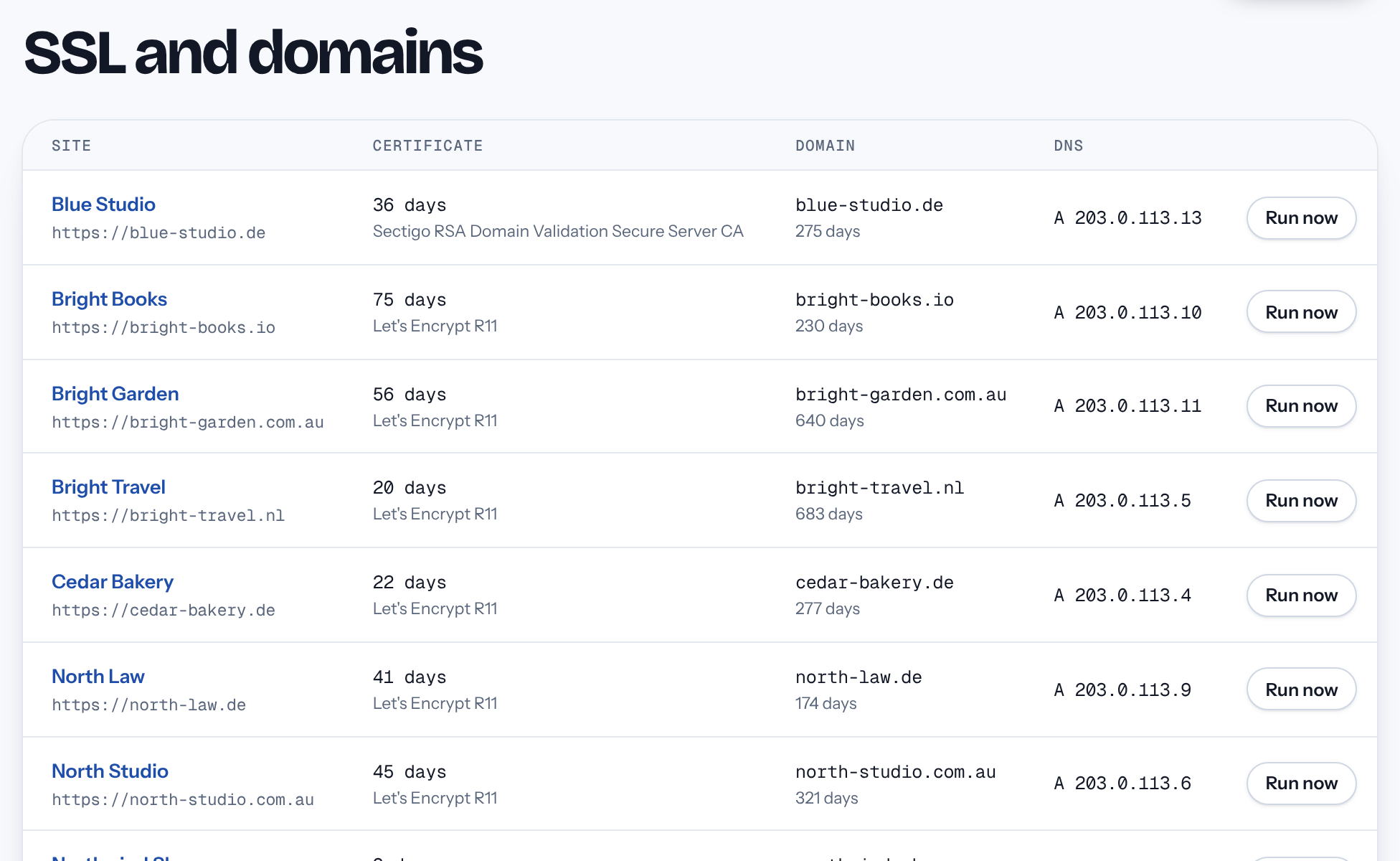
You get an alert when a certificate expires within 14 days and again within 3 days, and when the A, AAAA or CNAME records of a site's host name change.
Alerts
Alerts lists every alert with the site, when it was raised and the channels it went to.
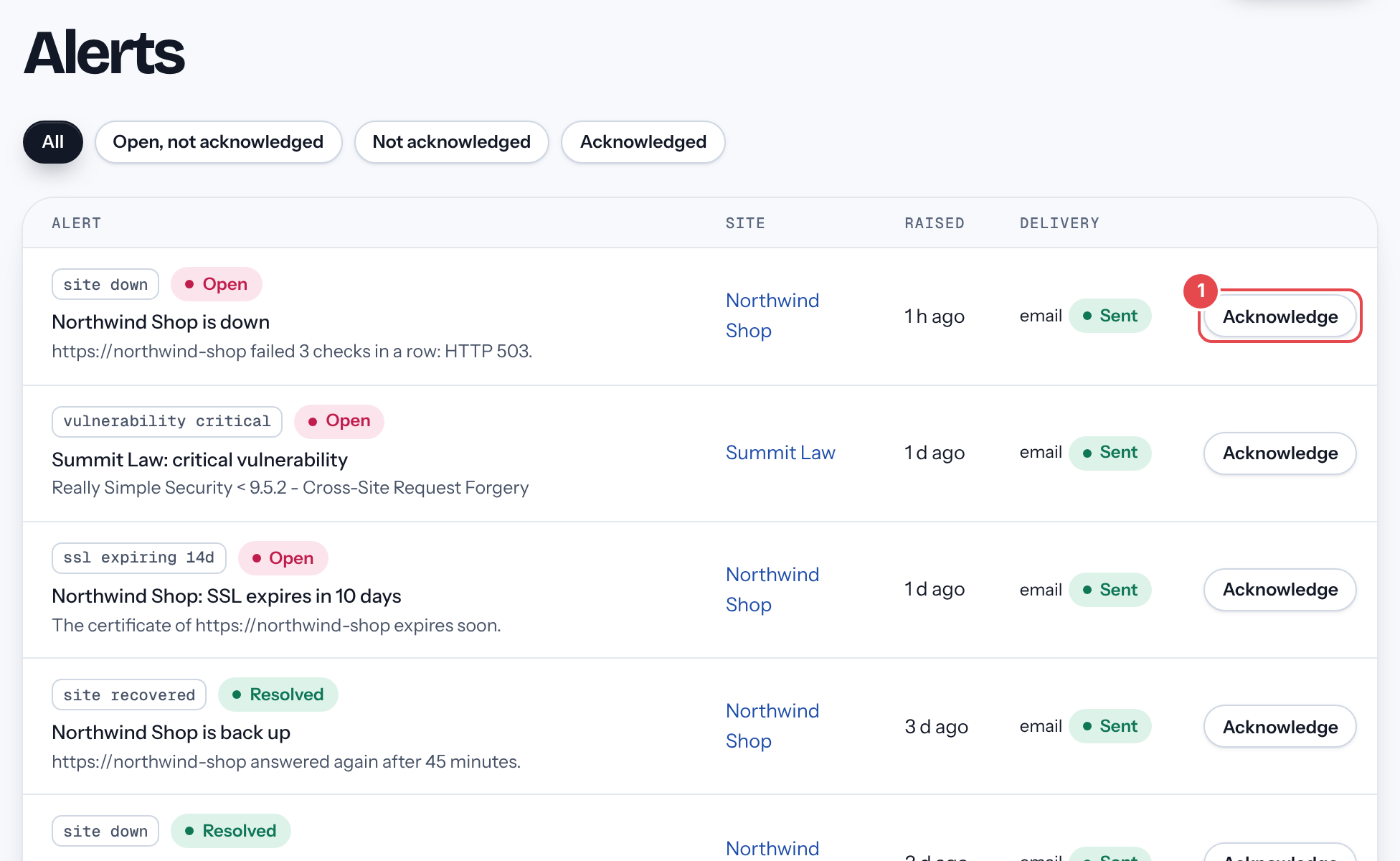
- Acknowledge silences an alert while its problem lasts, so the team knows someone is on it. The alert still ends on its own when the problem is fixed.
Alerts that arrive within the same minute are sent together: if four sites go down at once, you get one message that lists all four, not four messages.
Alert types
| Alert | When |
|---|---|
| Site down, Site recovered | 3 failed uptime checks in a row; the first good check after |
| Page check failed, Page check recovered | A page monitor failed its number of checks; its first good check after |
| SSL expires within 14 days, within 3 days | The certificate is about to expire |
| Fatal error burst | 5 or more new PHP fatal errors in 10 minutes |
| Site unreachable, Site reachable again | WPkeeper could not reach the site over SSH or the connector for 30 minutes |
| Update failed | An update job on the site failed |
| Disk over 90 % | The site's file system is almost full |
| Critical vulnerability | A plugin, theme or core version on the site has a critical vulnerability |
| DNS changed | The site's DNS records changed |
| Backup failed verification | The nightly check of a backup failed |
| Backup storage almost full | The included storage is 80 % full |
| Backup copy failed | A backup could not be copied to the second storage after several tries |
Alert channels
Every alert goes to email by default. Add more channels in Settings → Alerts and monitoring:
- Slack: paste an incoming webhook URL. Alerts arrive as cards with a coloured bar.
- Telegram: a bot token and a chat id.
- Hark: push notifications on an iPhone. Paste the webhook URL of a Hark service; you can add up to 10, for several phones, and write your own message template.
- Webhook: a URL that receives each alert as JSON, for your own tools.
Then choose what goes where in Alerts → Routing: one row per alert type, one column per channel.
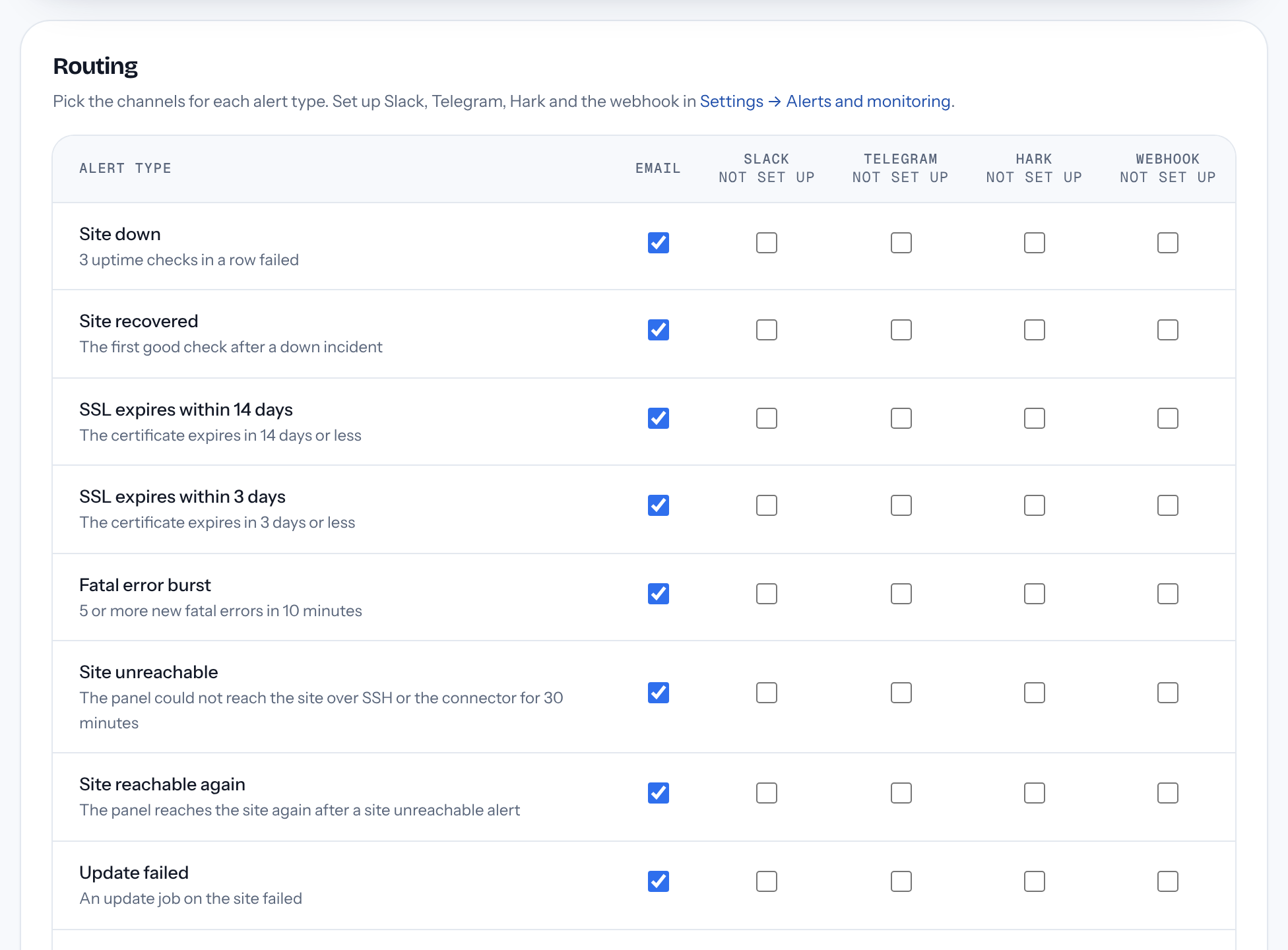
Below the table, Send test to … sends a test alert to each channel that is set up. For example, send "Site down" to Slack and Hark so you see it at once, and "SSL expires within 14 days" to email only.
Questions
The site is up but WPkeeper says it is down. Why?
Open the site's Uptime section and press the ? next to the failure. It shows what the check saw: often an error text in the page, a page that is much smaller than usual, or a redirect to another domain. If the page changed on purpose, save the site's check settings to reset the usual page size.
Can I check more often than every minute?
The interval is set per account in Settings → Alerts and monitoring, from 60 seconds to an hour. Every minute is the shortest.
How do I stop alerts for a site I am working on?
Acknowledge the alert, so it stays quiet while the problem lasts. To stop checking a site, turn its uptime checks off in its Uptime section, and back on when you are done. Note that WordPress's maintenance page counts as a failed check.