WPkeeper looks after every WordPress site you sell a care plan for, from one dashboard. It updates plugins safely, backs sites up, watches uptime and SSL, and sends your clients branded reports. This guide shows you around and points you to the guide for each step.
The dashboard
After you sign in you land on the Overview. It shows how many sites are healthy, which ones need attention and why, the updates waiting across all sites, and the open alerts.
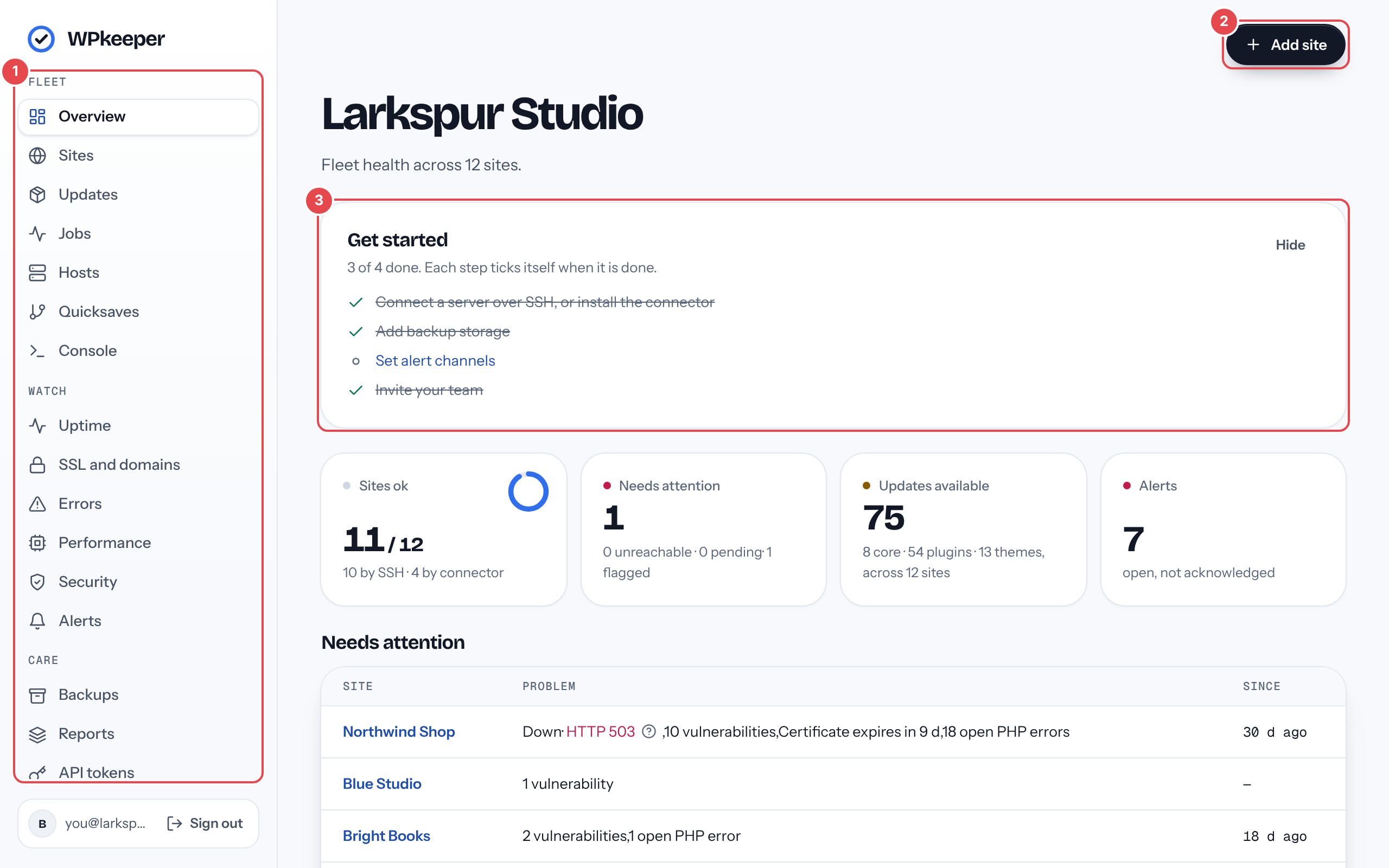
- The sidebar groups every page: Fleet (sites, updates, jobs, hosts, quicksaves, console), Watch (uptime, SSL, errors, performance, security, alerts) and Care (backups, reports, API tokens, settings).
- Add site connects new sites. It is always at the top of the sidebar for owners and admins.
- The Get started checklist ticks itself as you go: connect a site, add backup storage, set alert channels and invite your team. Press Hide once you are done with it.
Connect your first sites
WPkeeper reaches a site in one of two ways, and a site can use both:
- Over SSH. Connect a server once and WPkeeper finds every WordPress site on it. SSH gives you everything: updates with quicksaves and rollback, WP-CLI in the console, backups streamed straight from the server, and security checksums. See Connect a server over SSH.
- With the connector plugin. For hosts without SSH, install a small plugin and paste a one-time code. See Add a site with the connector plugin.
A new site shows as pending until its first check over SSH or its first check-in from the plugin, usually within a minute or two.
The Sites list
Sites lists every site with its host, WordPress and PHP versions, waiting updates, uptime, SSL expiry and last contact.
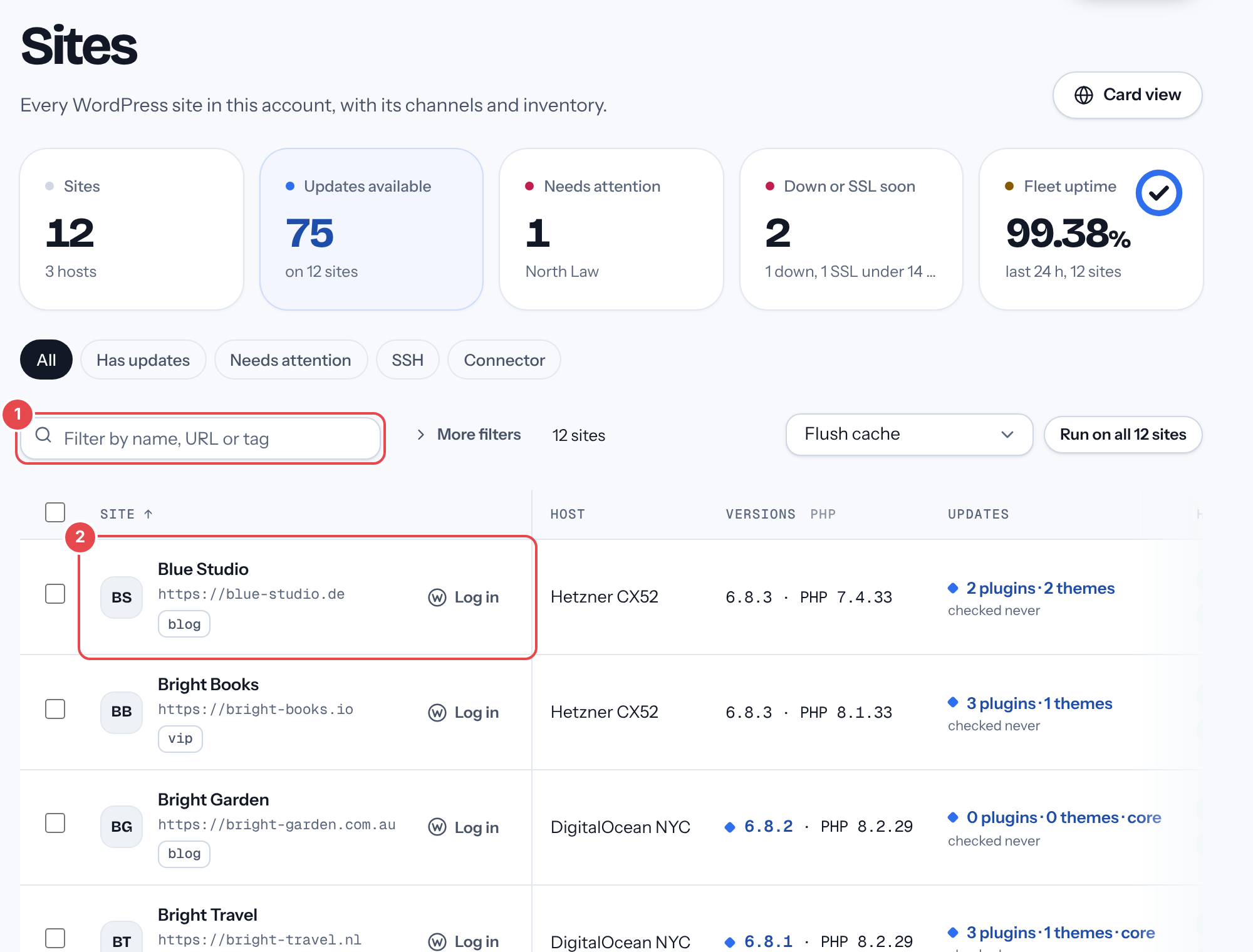
- Search and filter by name, URL or tag. The chips above filter by updates, attention needed or channel, and More filters adds host, environment and more. Save a filter you use often as a view.
- Each row opens the site. Log in opens wp-admin in a new tab without a password.
Tick sites (or use the whole filter result) to run one action on many sites at once, such as a cache flush or an update.
A site's page
Every site has its own page with a bar of sections: Overview, Updates, Plugins & Themes, Quicksaves, Console, Uptime, Errors, Backups, Performance, Security, Clients and Settings.
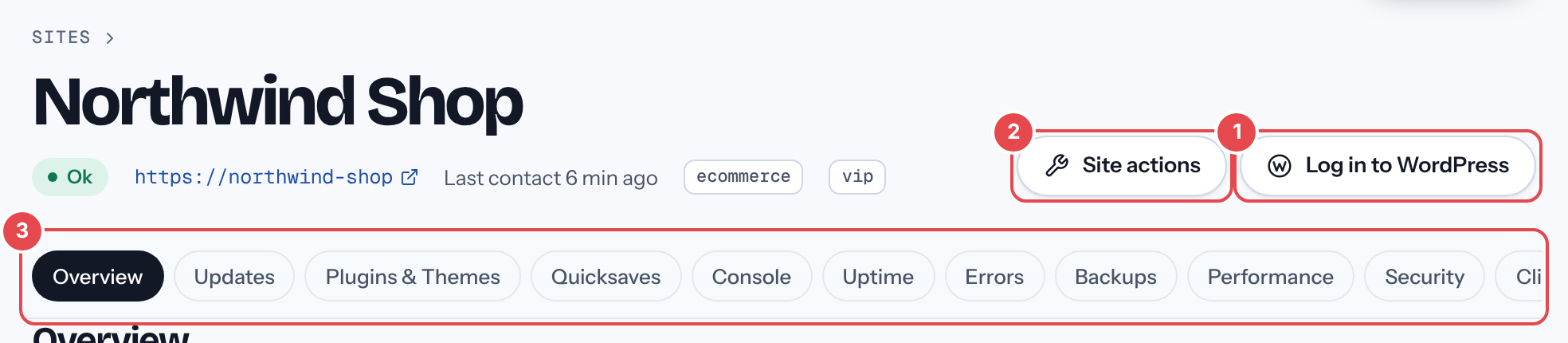
- Log in to WordPress signs you in to wp-admin with a one-time link.
- Site actions flushes caches, turns maintenance mode on or off, re-syncs the site now, or suspends it.
- The section bar switches between the site's sections. On a phone it scrolls sideways.
Set up the essentials
Four settings make the rest work. Each one has its own guide:
- Backups. New accounts back up to the storage included with the plan, so backups work at once. Add a schedule, or use your own S3 bucket. See Backups and restores.
- Alert channels. Alerts go to your email by default. Add Slack, Telegram, Hark or a webhook, and choose which alerts go where. See Uptime, SSL and alerts.
- Your brand. Put your name, logo and colour on reports, emails and the client portal. See Client reports and white-label.
- Your team. Invite colleagues, and give clients a view of their own sites. See Team members and client access.
Questions
Should I use SSH or the connector plugin?
Use SSH when your host offers it: one connection covers every site on the server, and you get quicksaves, the console and checksums. Use the connector where there is no SSH. A site that has SSH can also get the connector later, which adds live PHP error capture and real-time backups.
What does "needs attention" mean?
Something on the site needs a person: a failed update, a lost connection, a vulnerability, a failed backup or new PHP errors. The Overview lists each site with its problem and how long it has been there. Open the site to see the details and fix it.
Can I use WPkeeper from a script or an AI agent?
Yes. Create a token under API tokens in the sidebar. The same token works for the REST API and for the MCP server at /mcp, so Claude, Cursor and other agents can read your sites and run actions you allow.