An account can have as many people as you need. Your team sees every site; a client sees only the sites you share with them, under your brand.
Roles
| Role | What they can do |
|---|---|
| Owner | Everything. The person who created the account is its owner. |
| Admin | Add and remove sites, connect servers, change settings and the plan, and invite people. Admins cannot change or remove an owner. |
| Member | Day-to-day work on every site: updates, backups, the console, checks and alerts. Members cannot add sites or change account settings. |
| Client | The client portal only, for the sites you share with them. See below. |
Each role includes everything the roles below it can do. You can give a role up to your own.
Invite a team member
Go to Settings → Users.
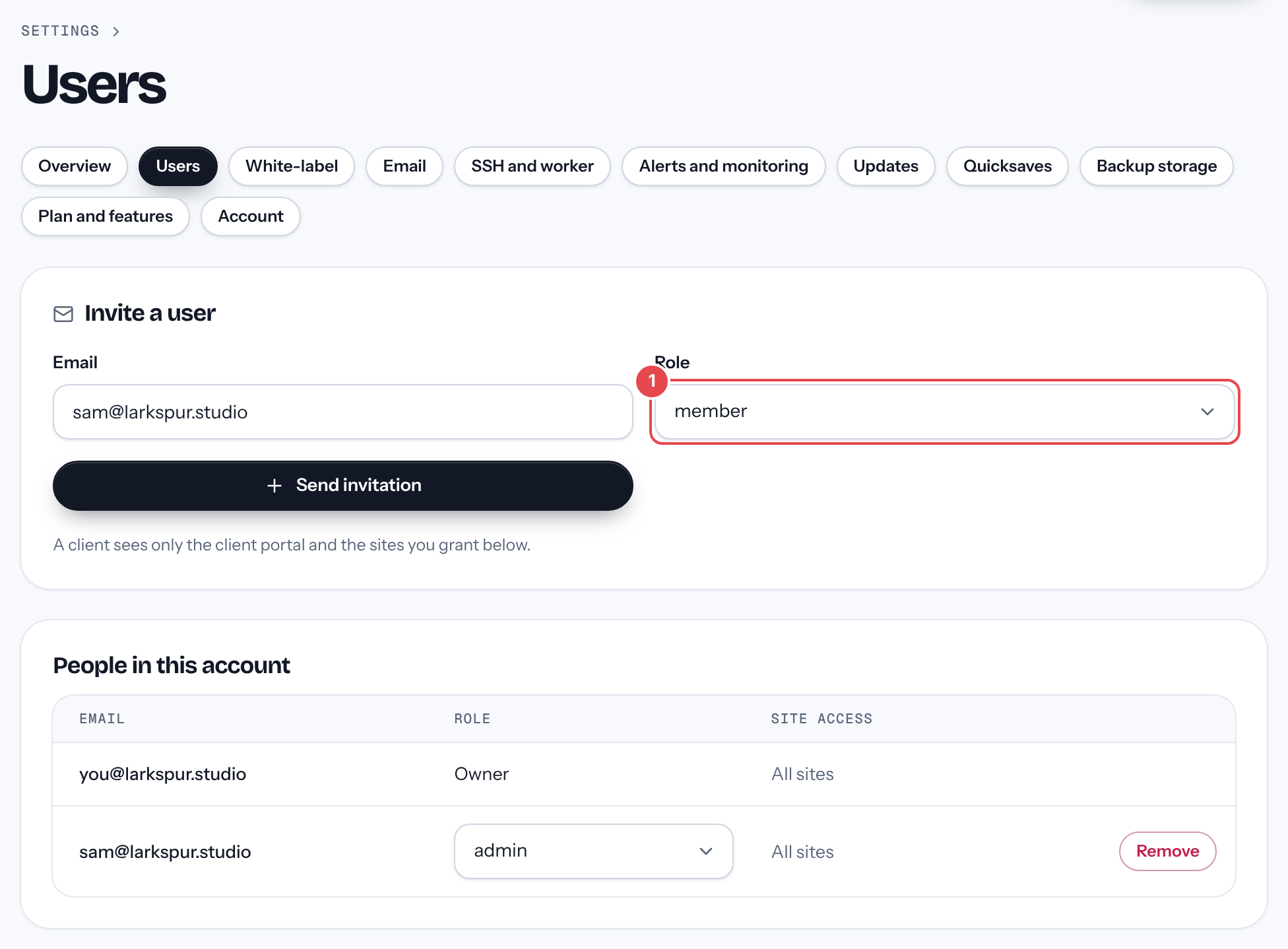
- Type their Email, choose a Role and press Send invitation.
They get an email with a link that works once, for 7 days. WPkeeper also shows the link with a Copy link button, so you can send it another way if the email lands in spam. Under Pending invitations, New link replaces a lost link and Revoke cancels it.
Change someone's role in the list, or press Remove to take away their access at once.
Two-step sign-in
Everyone can turn on two-step sign-in on their Settings page, with an authenticator app, a passkey, or both. Under Two-step sign-in in Settings → Users, an owner who has it on can require it: owners, admins and members then turn it on before they can use the panel. Clients may still choose.
Share a site with a client
The quickest way is from the site itself. Open the site and go to Clients.
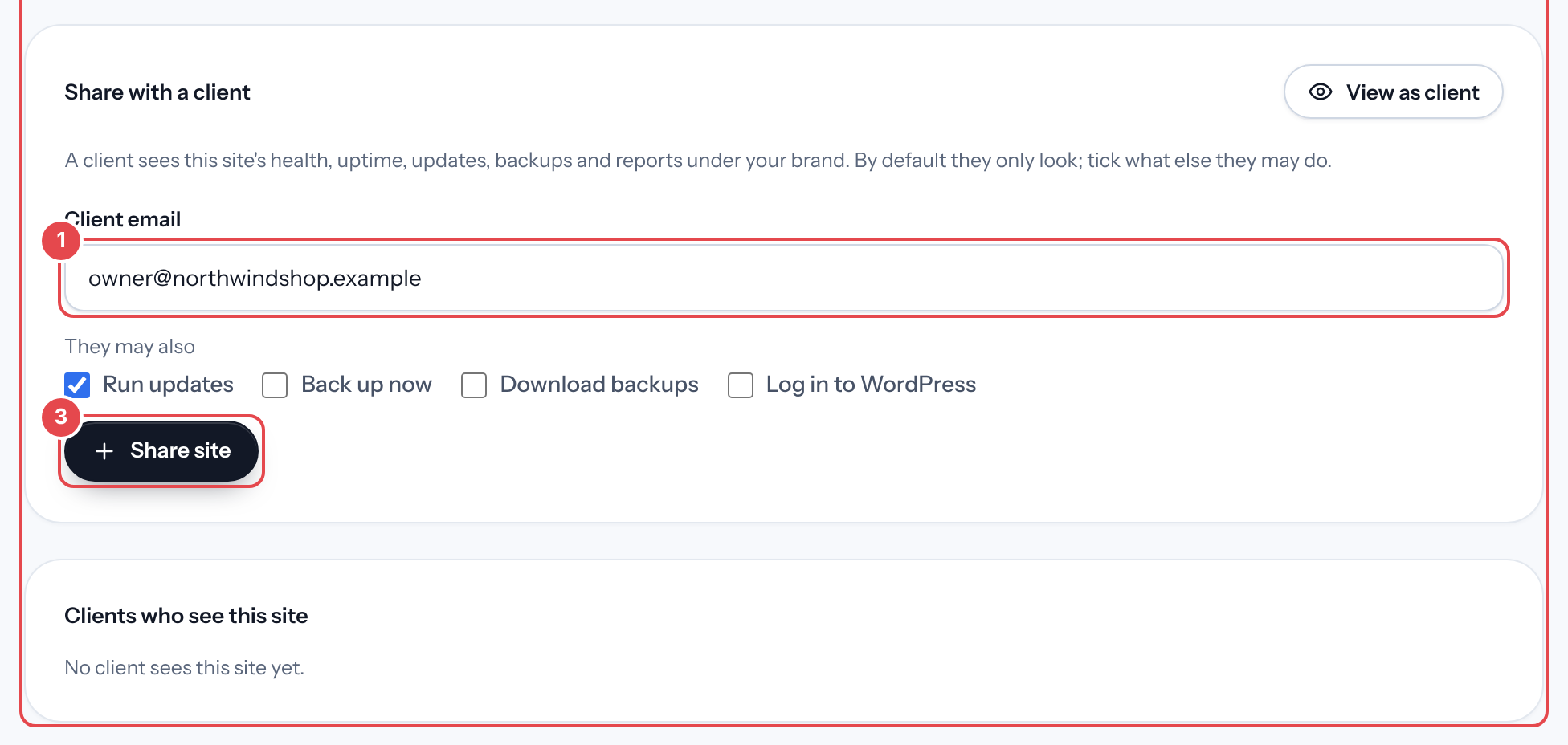
- Type the client's email. A client who has no login yet gets an invitation.
- By default a client can only look. Tick what else they may do on this site: Run updates, Back up now, Download backups (the archives, and single plugins and themes from them) or Log in to WordPress.
- Press Share site.
Clients who see this site lists everyone with access, and lets you change what they may do or stop sharing. View as client shows the site exactly as the client sees it.
You can also invite someone with the client role in Settings → Users and choose their sites there.
What a client sees
A client signs in to the portal, on your portal domain if you set one (see Client reports and white-label). They see:
- Your sites: each shared site with its health, uptime, SSL, updates and backups;
- the site's reports, ready to download;
- buttons only for the actions you allowed.
Everything carries your product name, logo and colour. The portal never shows WPkeeper, your other clients or your other sites.
Questions
Do clients count as users on my plan?
No. Your plan is priced by sites, not by people. Invite as many team members and clients as you need.
A client can't find the invitation email.
Open Settings → Users, find them under Pending invitations and press New link. Copy the link and send it to them yourself. The old link stops working.
How do I give a freelancer access to only one site?
Team roles see every site. For one site, share it with them as a client and tick the actions they need, such as Run updates and Log in to WordPress.