The connector is a small WordPress plugin for sites on hosts without SSH. It checks in with WPkeeper every few minutes, and WPkeeper sends it signed requests to update, back up, restore and sign in. On a site that also has SSH, it adds live PHP error capture and real-time backups.
You need an administrator login for the site's wp-admin. Only owners and admins can add sites.
Step 1: add the site
Go to Sites → Add site and choose By connector code.
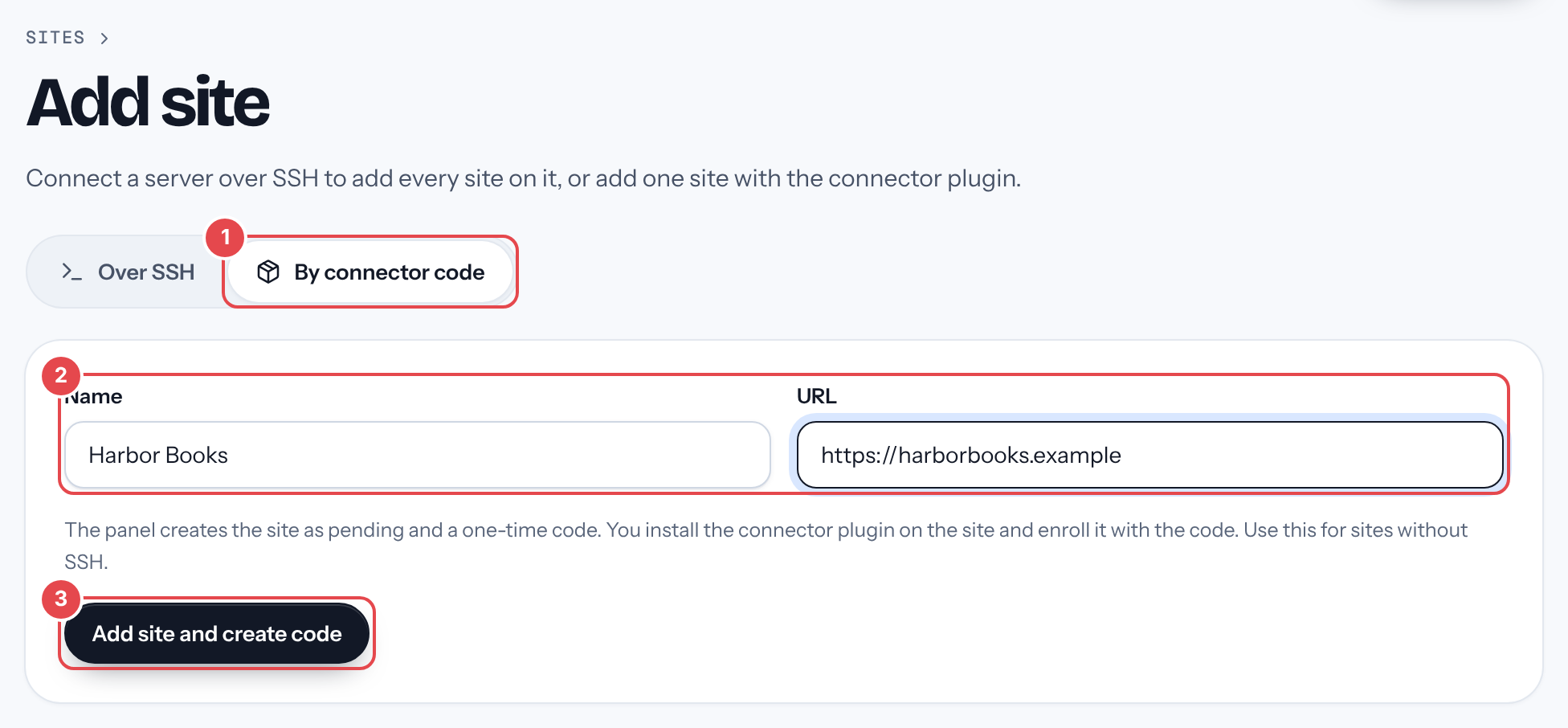
- Choose By connector code.
- Type the site's Name and its URL, such as
https://example.com. - Press Add site and create code. The site is added as pending.
Step 2: install the plugin
WPkeeper shows the steps and a one-time code.
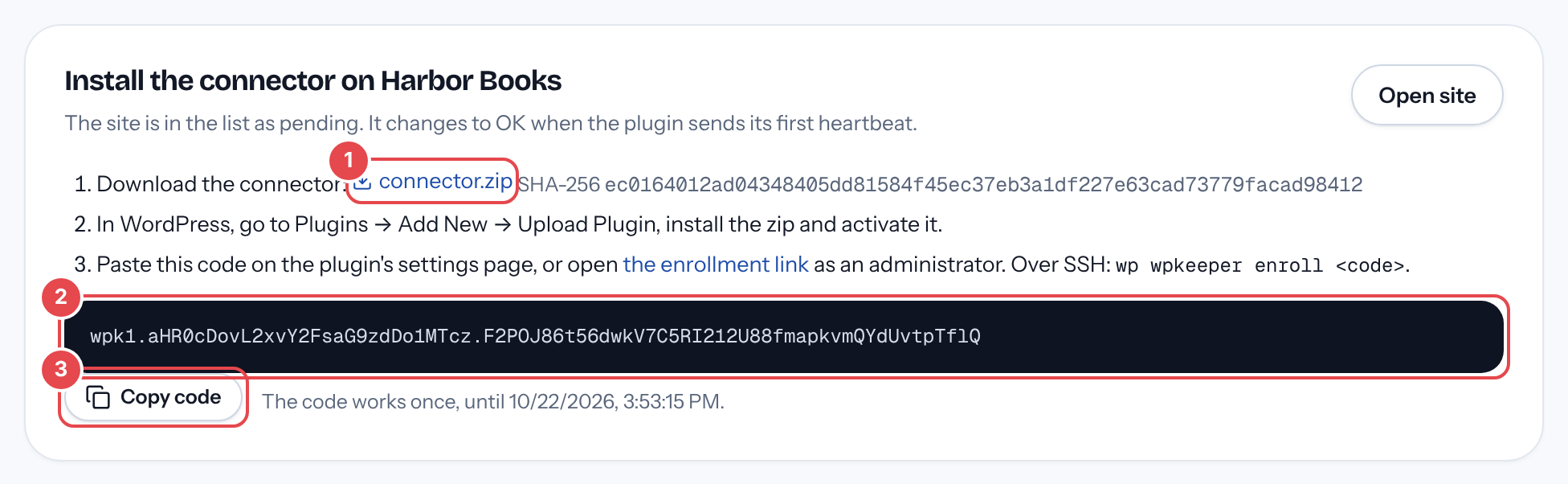
- Download connector.zip. It is built for your account, with your brand if you use white-label. The SHA-256 next to it lets you check the download.
- This is the connection code. It works once and expires after the date shown.
- Copy code copies it.
In wp-admin, go to Plugins → Add New → Upload Plugin, upload the zip, then Activate.
Step 3: paste the code
Open the plugin's page in the wp-admin menu (it carries your product name) and go to Connection.
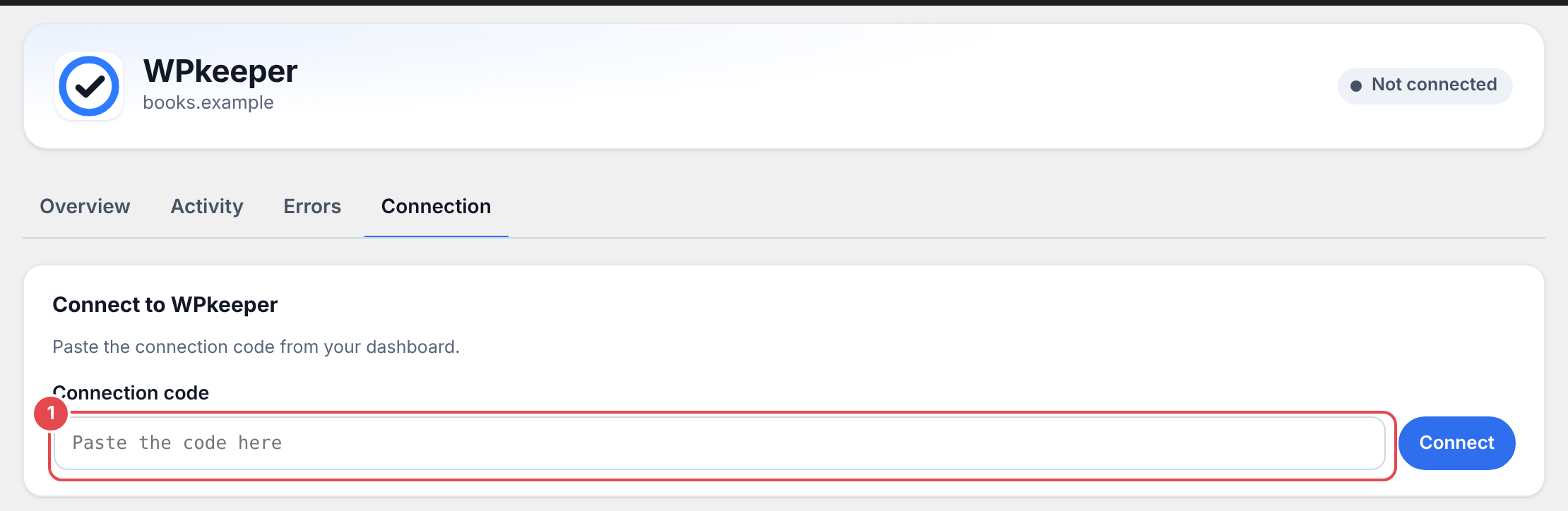
- Paste the code in Connection code and press Connect. Confirm that you trust your dashboard: it will be able to update plugins and sign in to the site as an administrator.
Instead of pasting, you can open the enrollment link WPkeeper shows while you are signed in to wp-admin as an administrator. With WP-CLI on the server you can run wp wpkeeper enroll <code>.
The site turns from pending to OK after the plugin's first check-in, usually within a minute. Its wp-admin page then shows the last check-in, waiting updates, recent PHP errors and the last backup.
Add the connector to a site that has SSH
Open the site, go to Settings → Connector and press Enroll connector. WPkeeper shows a code for that site. Install the plugin and paste the code as above. The site keeps SSH and gets live PHP errors and real-time backups too.
Keep the connector up to date
The site page warns when a site runs an older connector. Use Site actions → Update connector. On a white-label account the update keeps your brand, because the plugin folder stays the same.
Questions
What can WPkeeper do through the connector?
Inventory of core, plugins and themes, updates and safe updates (with a copy of each updated plugin kept for 24 hours for rollback), backups and restores, one-click sign-in, PHP error capture, maintenance mode and cache flush. The console, quicksaves and checksum scans need SSH.
The site stays pending. What should I check?
The plugin's Connection tab shows the last check-in and a Diagnostics list: it names anything the server is missing, such as outgoing HTTPS or scheduled tasks (WP-Cron). If WP-Cron does not run, check-ins come late. Press Copy report and send it to support if you are stuck.
The plugin says "Connection lost". What happened?
The security keys in wp-config.php changed, so the plugin can no longer read its saved connection. In WPkeeper, open the site, go to Settings → Connector, press Disconnect connector and then Enroll connector, and paste the new code on the plugin's Connection tab.
How do I disconnect a site?
Open the site, go to Settings → Connector and press Disconnect connector. WPkeeper tells the plugin to forget its key, and the site keeps SSH if it has it. Removing the site does the same. You can then deactivate and delete the plugin.