SSH is the main way WPkeeper reaches your sites. You connect a server once with an SSH user, and WPkeeper scans it for WordPress and adds the sites you pick. It then runs WP-CLI on the server for inventory, updates, quicksaves, backups and the console. Nothing is installed on the sites.
You need an SSH user on the server that can read the WordPress folders, and the server address. Only owners and admins can connect servers.
Before you start
Your host shows the SSH details in its dashboard, often next to SFTP. WPkeeper has a short guide for each common host. Pick your host in the first step and press Guide for … to open it:
- BigScoots, Kinsta, WP Engine, SiteGround and Cloudways
- cPanel and Plesk
- Your own VPS, or any other host
Do not use root. Use the user that owns the site files, or a shared user that can read every site folder.
Step 1: the server
Go to Hosts and press Connect a server, or Add site and then Connect over SSH. The guided flow checks each step before you go on.
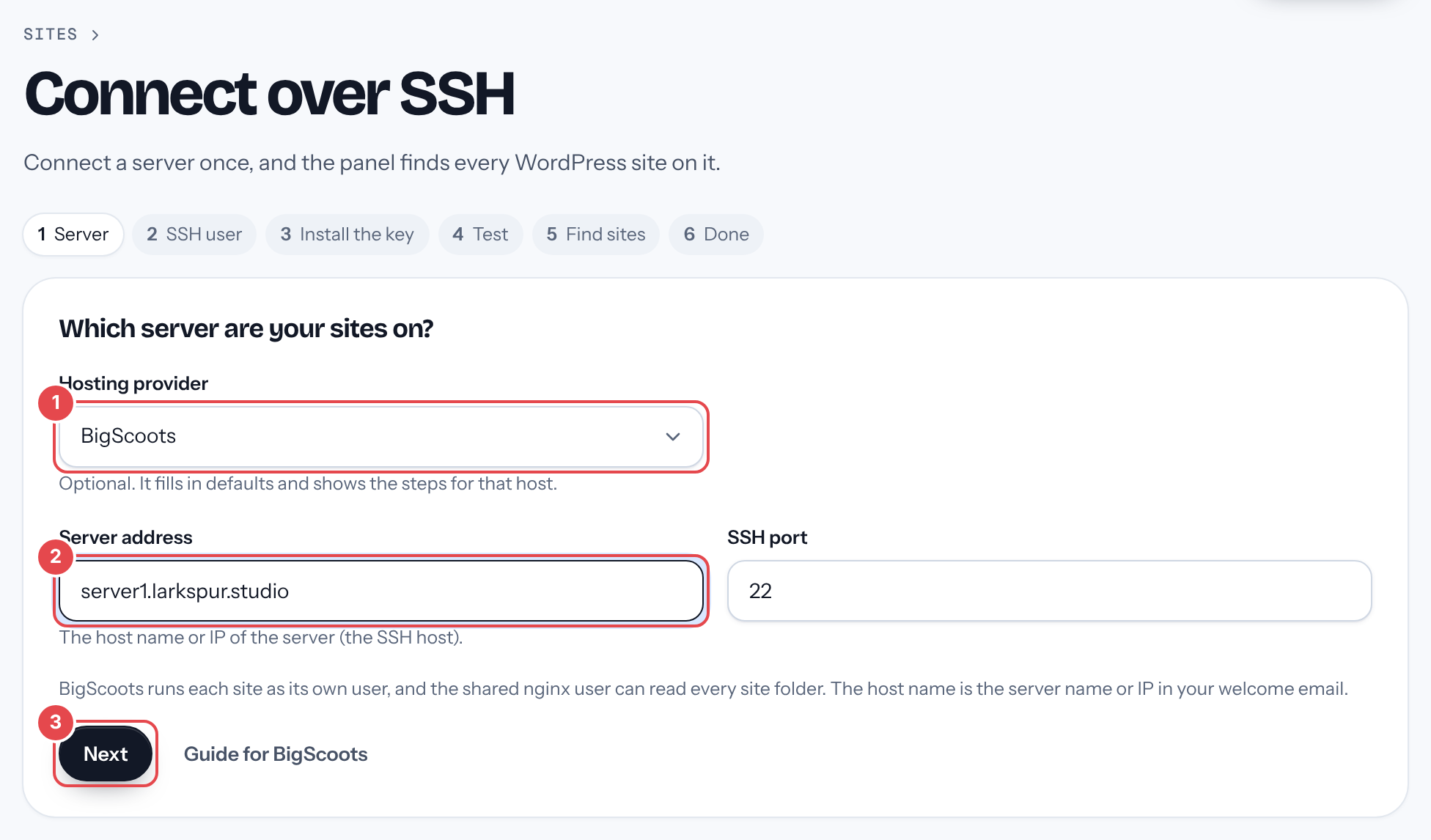
- Hosting provider is optional. It fills in the usual port and folders for that host and shows its own steps.
- Server address is the host name or IP of the server, the SSH host. Change the SSH port if your host uses another one. SiteGround, for example, uses 18765.
- Press Next, then type the SSH user on the next step.
Step 2: install the panel's key
WPkeeper signs in with its own key, not a password. Every account has one public key. Add it to the SSH user on the server.
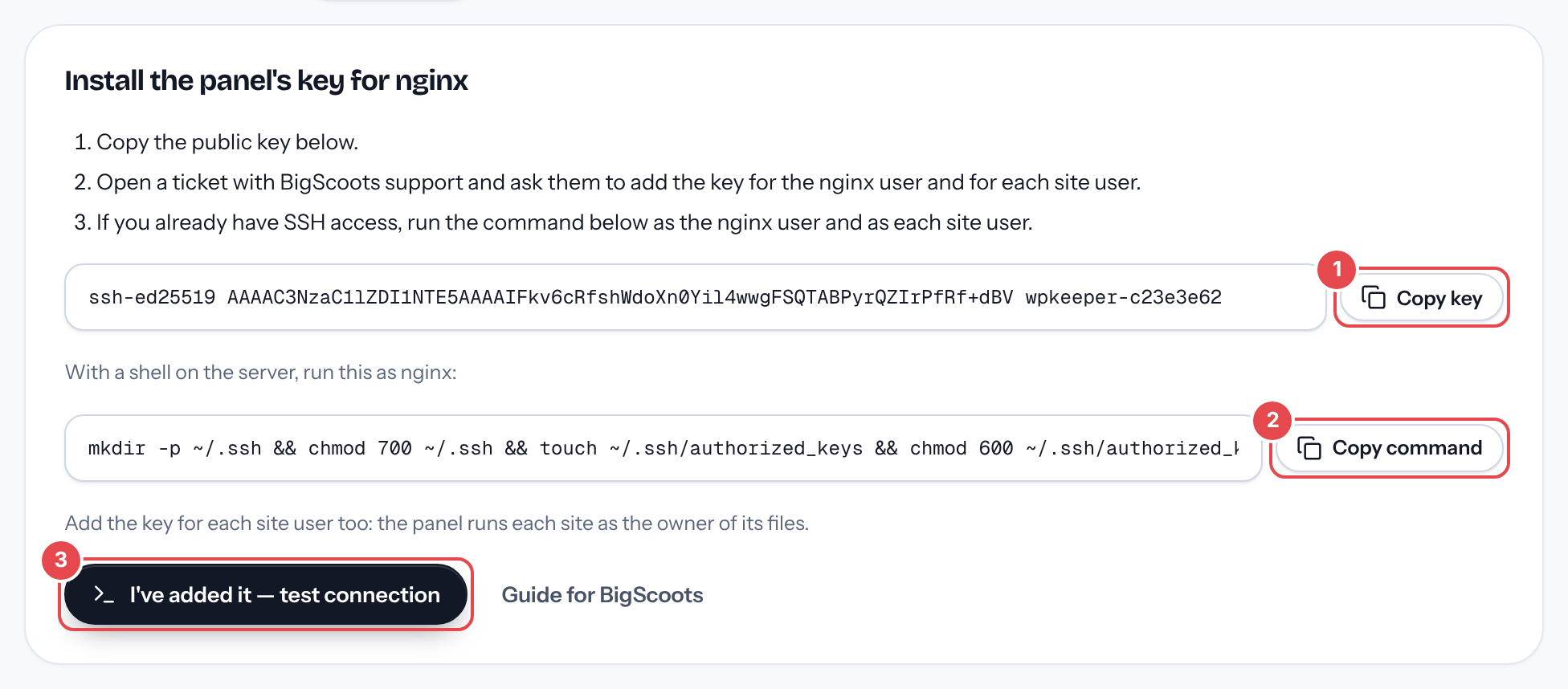
- Copy key copies the account public key. Paste it in your host's SSH keys page, or send it to your host's support.
- Copy command copies a command that adds the key for the user that runs it. Use it when you already have a shell on the server. It adds the key once and leaves the other keys alone.
- Press I've added it — test connection. WPkeeper connects as that user and checks WP-CLI.
On hosts where each site runs as its own user, such as BigScoots, add the key for the shared user and for each site user. WPkeeper runs WP-CLI as the owner of each site's files.
The account public key is also on the Hosts page and in Settings → SSH and worker.
Step 3: find and add the sites
After a good test, WPkeeper looks for WordPress in the usual folders and fills in the Folder with your sites. Change it if your sites are elsewhere, then press Find sites.
Tick the sites to add and press Connect selected. Each new site is pending until its first inventory over SSH, which usually takes less than a minute. A site you already added with its URL or the connector is linked to the found site instead of added twice.
Servers on the Hosts page
Every connected server is on Hosts, with its addresses, scan user, number of sites and last scan.
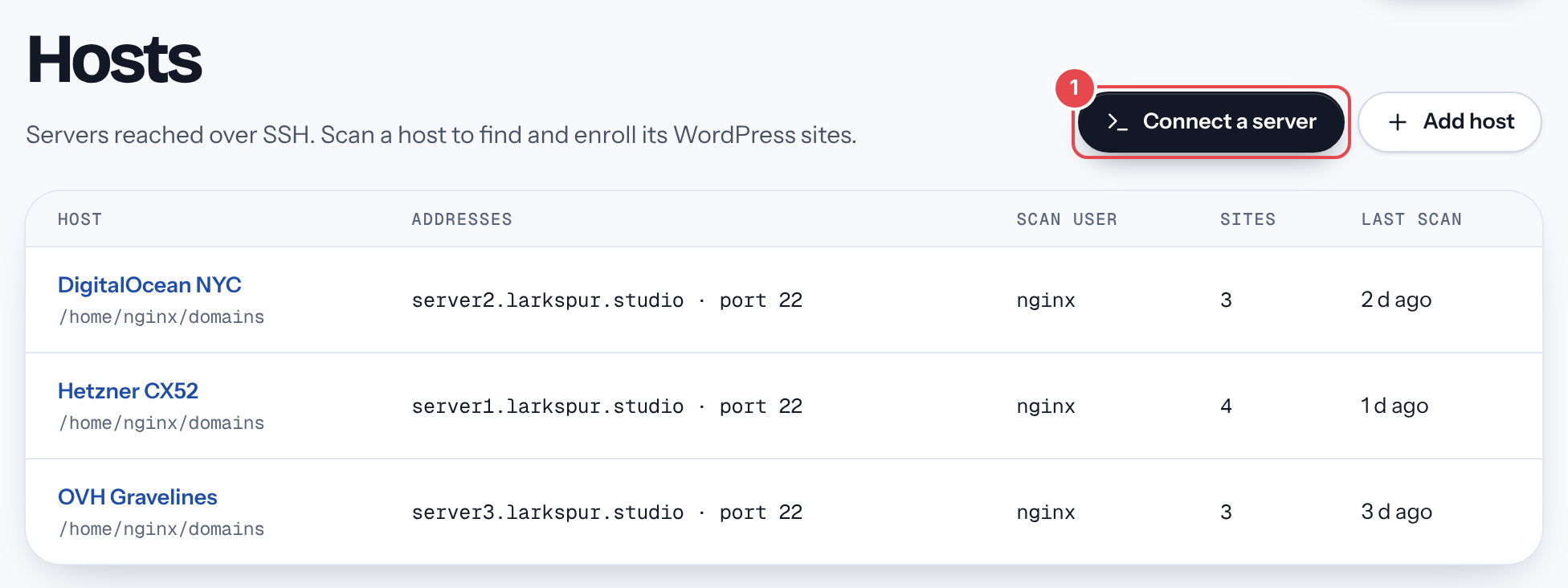
- Connect a server opens the guided flow. Add host adds a server by hand, with its addresses, scan user, domains root and user scheme.
Open a server to test it again or scan it for new sites.

- Test SSH connects to every address of the server and counts the WordPress sites under its domains root.
- Scan host lists every site on the server: new ones you can add, ones you already have, and ones that are gone.
When the test fails
The flow names the cause and the step that fixes it.
| What you see | What to do |
|---|---|
| Cannot reach the server | Check the address and the port, and that the host allows SSH from outside. |
| The server key changed | The server was rebuilt or moved. If you expected that, press Reset the server key and test again. |
| Key refused | The key is not in ~/.ssh/authorized_keys of that user yet, or it was pasted on two lines. Add it again and test. |
| WP-CLI missing | Ask your host to install WP-CLI, or install it in the user's ~/bin. |
| Cannot read the folder | The user cannot open the site folder. Use the owner of the files, or add the key for each site user. |
| No WordPress at the folder | The folder has no wp-config.php. Point it at the folder that holds WordPress. |
A site whose SSH check fails later shows the cause on its Overview, with Fix connection, which opens the flow at the step that fixes it.
Questions
Is it safe to give WPkeeper SSH access?
WPkeeper keeps the private key encrypted on its own server and never shows it. It pins the server's host key the first time it connects, so it refuses a server that pretends to be yours. You can remove the key from authorized_keys at any time to cut access.
A site has no SSH. Can I still add it?
Yes. Use the connector plugin instead: Add a site with the connector plugin. If the site gets SSH later, open it and press Connect over SSH on its Overview.
I added a new site on the server. How do I add it to WPkeeper?
Open the server on Hosts and press Scan host. New sites show as new. Tick them and press Enroll selected.