WPkeeper checks every site for core, plugin and theme updates, and lists them in one place. You can update one item on one site, one item on every site that has it, several items at once across their sites, or everything on a selection of sites. Each update runs as a job with a log for every site and item.
Every update in one list
Updates groups the waiting updates by item and target version, with the number of sites that need each one.
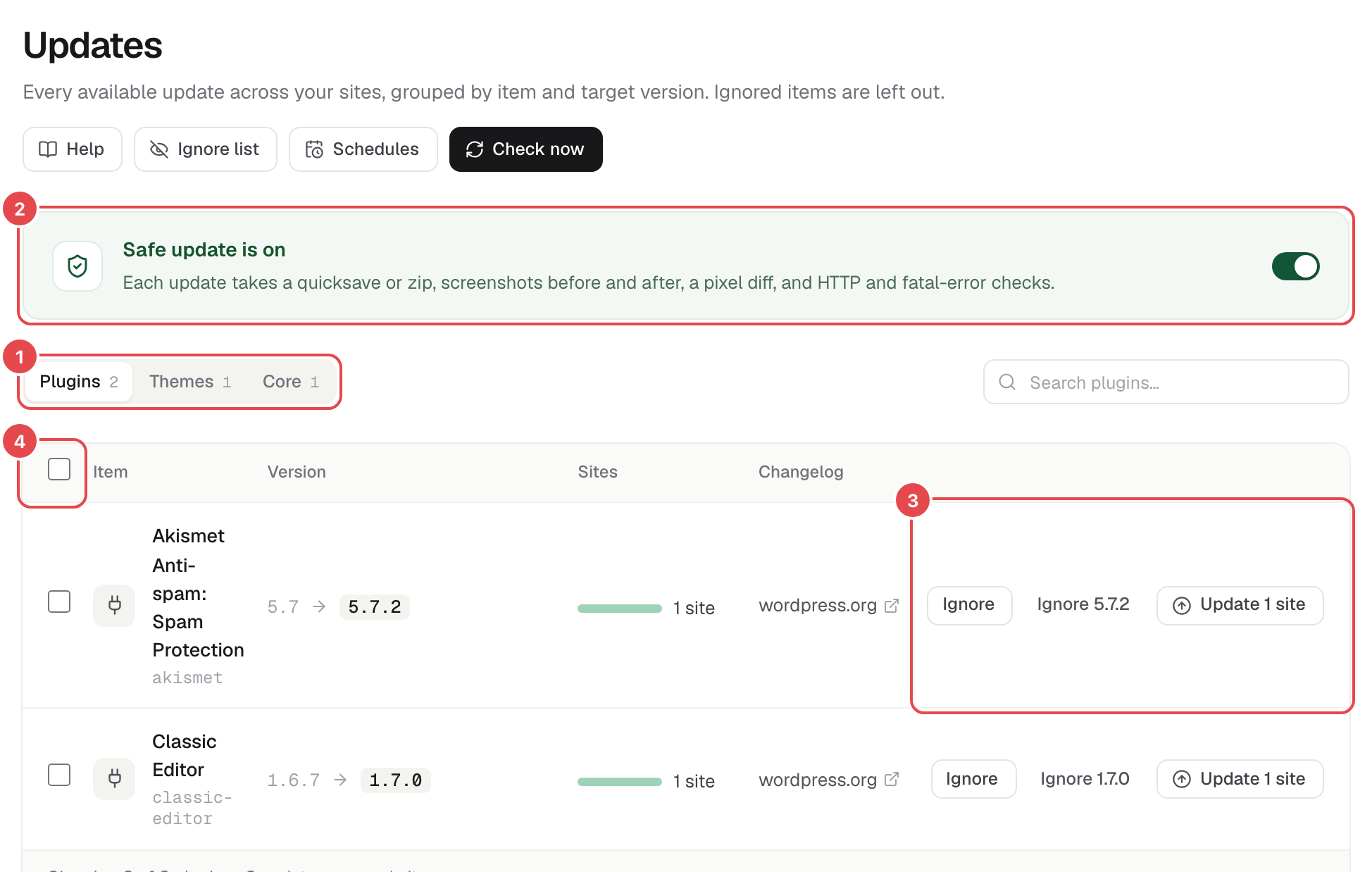
- The tabs switch between plugins, themes and core.
- Safe update is on by default. Leave it on unless you have a reason not to; see below.
- Each row updates that item on all its sites, or ignores it. Ignore hides the item everywhere; Ignore 1.2.3 hides only that version, so the next release shows again.
- The boxes select several items to update together; see below.
Update several items at once
Tick the box at the start of each row you want, on any tab: the selection stays while you switch between plugins, themes and core. The box in the header ticks every row shown, or every row the search matches. A bar at the bottom counts the items and site updates you chose.
Press Update selected, check the list, and confirm. WPkeeper runs one bulk job: each site gets one update job with all of the items you chose for it, core first, then plugins, then themes. With Safe update on, that job takes one quicksave and one set of screenshots and checks for all of the site's items. If a check fails, roll back from the job's result as for any safe update. The rollback puts back every plugin and theme that job changed; to put back only one of them, use Roll back… on the site's Quicksaves section. Core is not in a quicksave, so a core update is not rolled back.
Check now asks every site for fresh update information. Sites are also checked on their own every few hours (Settings → Updates → Update checks).
Update one site
Open a site and go to its Updates section to see that site's updates.
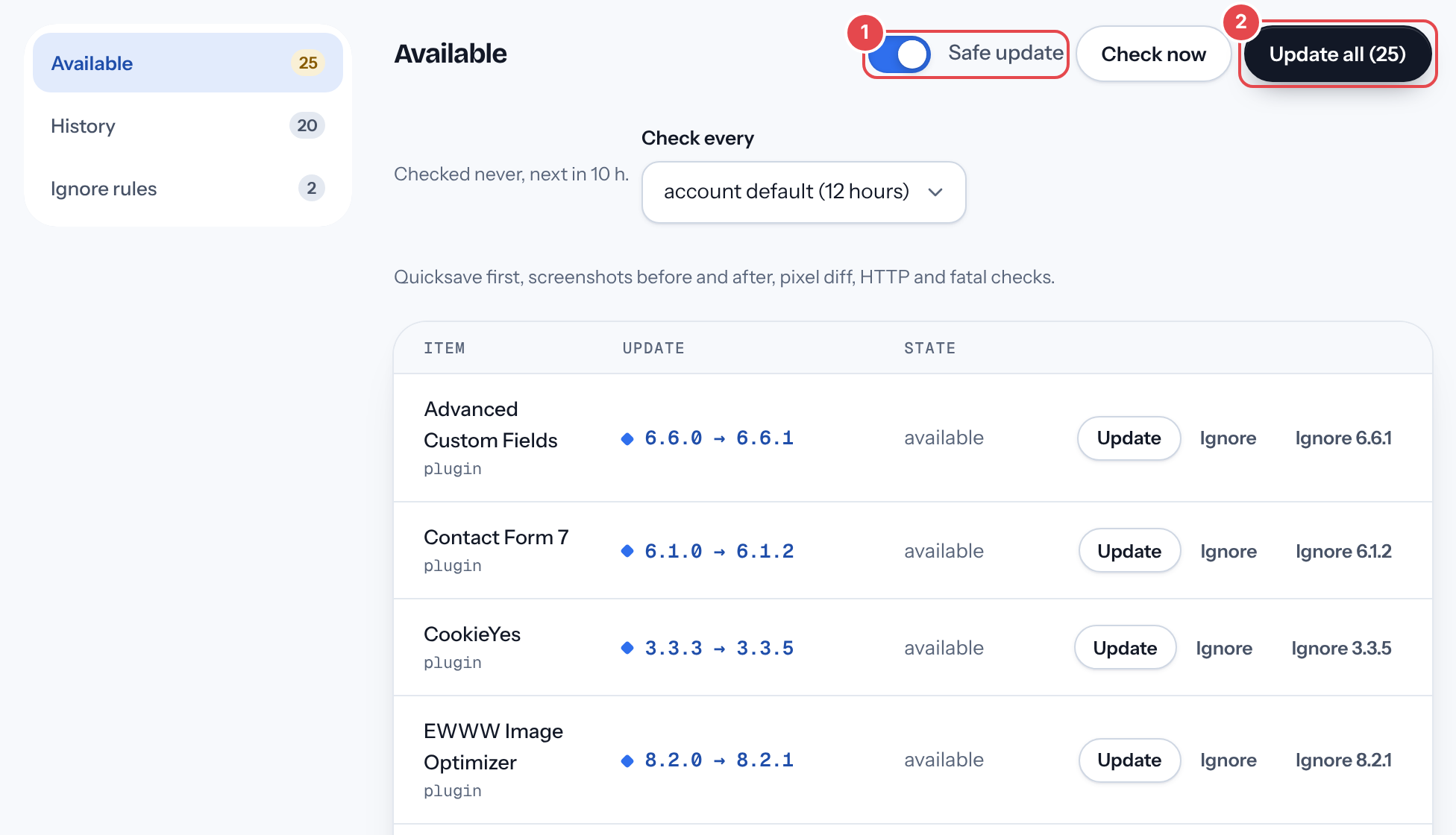
- Safe update applies to the updates you start here.
- Update all installs every waiting update on this site in one job. Each row also has its own Update button.
History lists the update jobs of the site with their logs, and Ignore rules the items ignored for this site.
What a safe update does
A safe update protects the site before, during and after the update:
- A restore point. Over SSH, WPkeeper takes a quicksave of the plugins and themes first. Through the connector, the plugin keeps a copy of each updated plugin and theme for 24 hours.
- Screenshots. It captures the home page (and a second page if you set one in the site's Uptime settings) before and after.
- Checks. It compares the screenshots pixel by pixel, loads the page again to check the answer, and looks for new PHP fatal errors.
If a check fails, the job fails, the site shows as needs attention, and the job keeps both screenshots so you can see what changed. Press Roll back from the quicksave (or from the retained zip on a connector site) on the job's result to put the old versions back. A plain update skips the screenshots and checks.
The pixel threshold is in Settings → Updates → Safe update. Raise it a little for sites whose home page changes on every load, such as a news site with rotating ads.
Schedule updates
Updates → Schedules runs safe updates on a timetable, so routine updates happen without you.
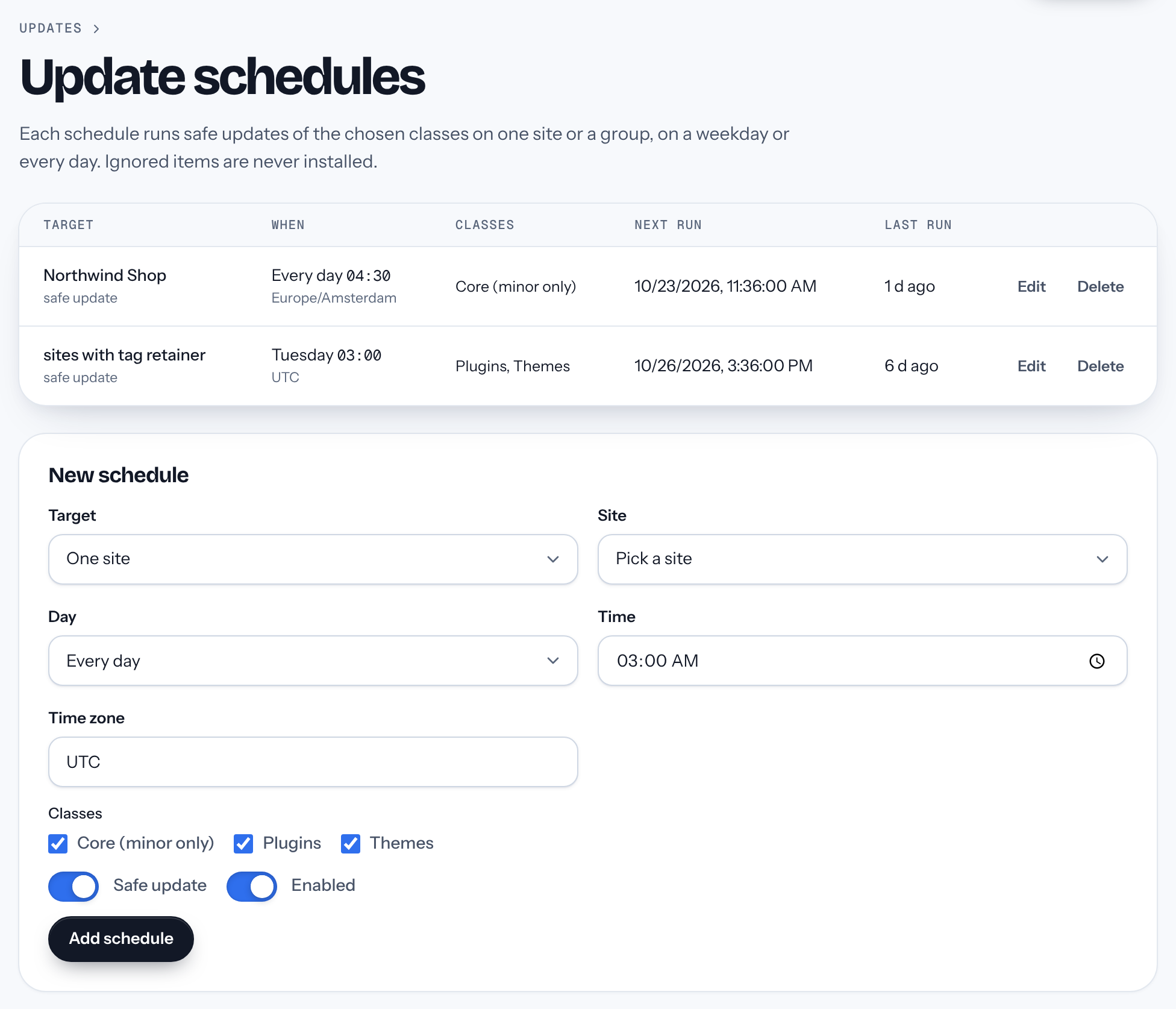
Each schedule has:
- a target: one site, or a group of sites by host, tag or environment;
- when: a weekday or every day, a time and a time zone;
- the classes to install: core (minor releases only), plugins and themes.
Ignored items are never installed by a schedule. Schedules always run as safe updates unless you turn Safe update off for that schedule.
Ignore updates
Some updates should wait: a plugin you have customised, or a major version you want to test first. Settings → Updates → Ignore list holds the rules for the whole account.
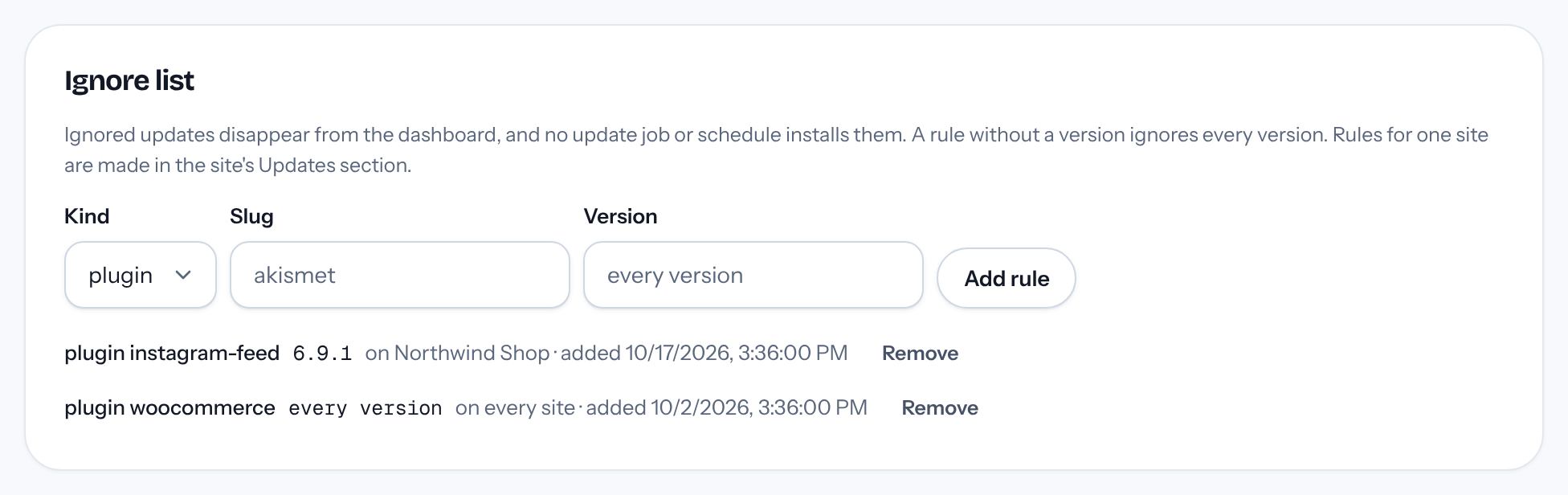
A rule names a plugin or theme by its slug (the folder name, such as akismet), or core. Leave Version empty to ignore every version, or type one version to skip only that release. Rules for a single site live in that site's Updates → Ignore rules.
Questions
A safe update failed but the site looks fine. Why?
The page changed more than the pixel threshold allows, usually because of a slider, a cookie banner or a date on the page. Open the job to compare the two screenshots. If nothing is wrong, keep the update and raise the threshold a little in Settings → Updates.
Can I roll back a plain update?
Over SSH, yes: every update job takes a quicksave first, safe or not. Open Quicksaves on the site to roll back one plugin or all of them. On a connector-only site, the plugin keeps the previous copy for 24 hours.
Does WPkeeper update premium plugins?
It updates anything WordPress itself can update. A premium plugin that shows its updates in wp-admin (with an active licence) updates the same way.