WPkeeper backs up the database and files of each site to S3-compatible storage. New accounts back up to the storage included with the plan, so backups work as soon as a site is connected. Over SSH the backup streams straight from the server to storage; through the connector, the plugin uploads it in parts. Nothing passes through your computer.
A site's backups
Open a site and go to Backups. The list shows each backup with its kind, size and status.
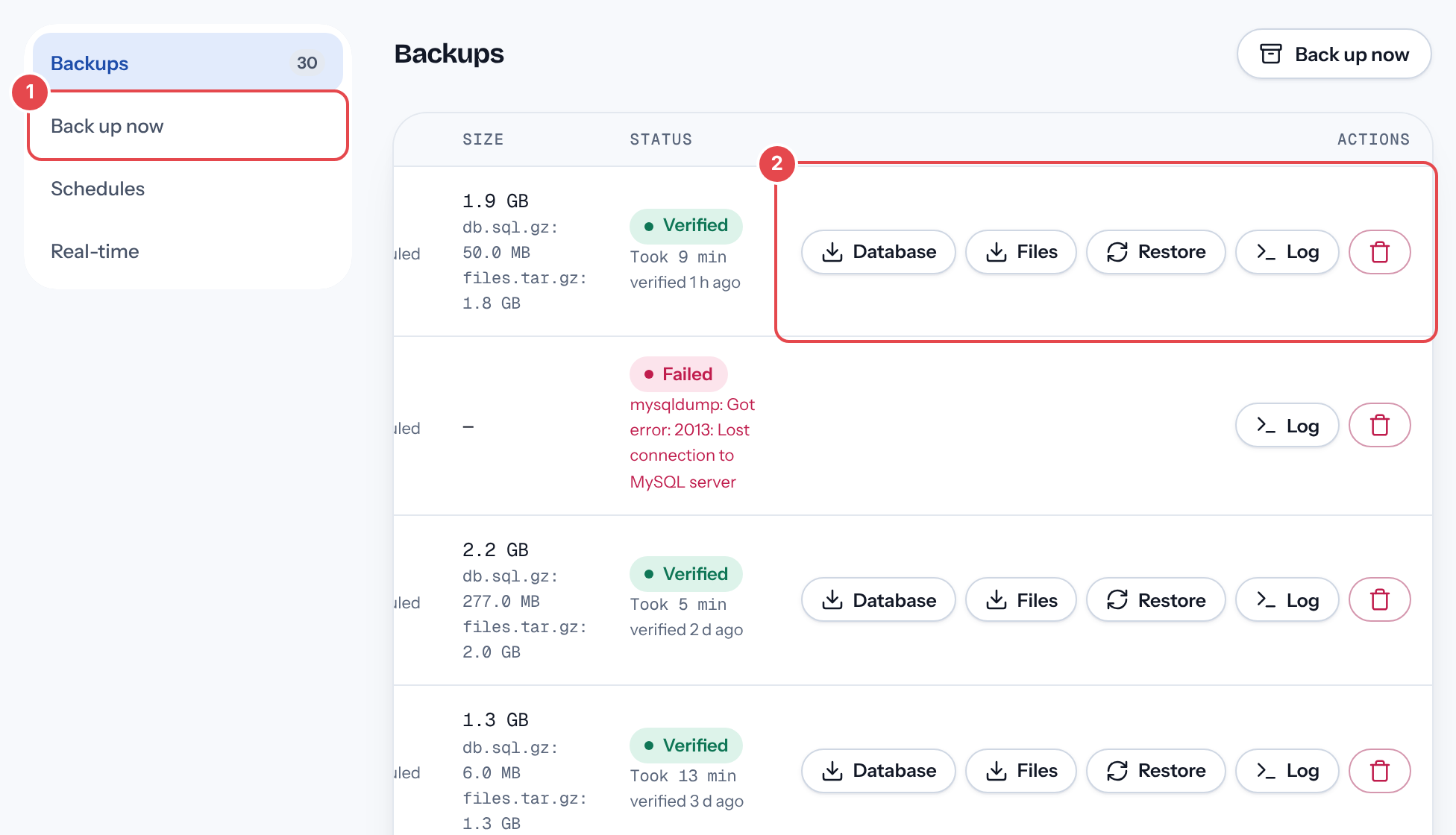
- Back up now takes a backup at once.
- Each finished backup has Database and Files downloads, Plugins and Restore.
A backup is Uploaded when every part is in storage, and Verified once WPkeeper's nightly check has listed it and compared its checksums. A failed backup shows its reason, with the database's own error when the dump failed, such as mysqldump: Error 2013: Lost connection to server during query when dumping table …, and a hint for the common ones.
An incremental backup does not fail because one table cannot be dumped. It dumps the other tables, tries the failing table again on its own, and if it still fails, finishes complete with warnings and names the table and the error. It keeps the table's copy from an earlier backup, if there is one (not for a database view: every backup dumps its views fresh, so a view that fails, or that reads a skipped table or view, has no copy in that backup), and the next backup tries that table again, so you don't need a new full backup. If a table fails three backups in a row, you get a "Backup skipped a table" alert. Restoring a backup that has no copy of a table warns you first, then restores everything else and leaves that table on the site as it is. A full (not incremental) backup still fails when a table can't be dumped.
Deleting a backup moves it to the trash: its files stay in storage for the plan's trash period (14 days unless the plan sets another), every owner is emailed, and an admin can undo the delete until then. When the trash holds backups, the storage line on the Backups page links to it.
Back up now
Back up now opens a short form.
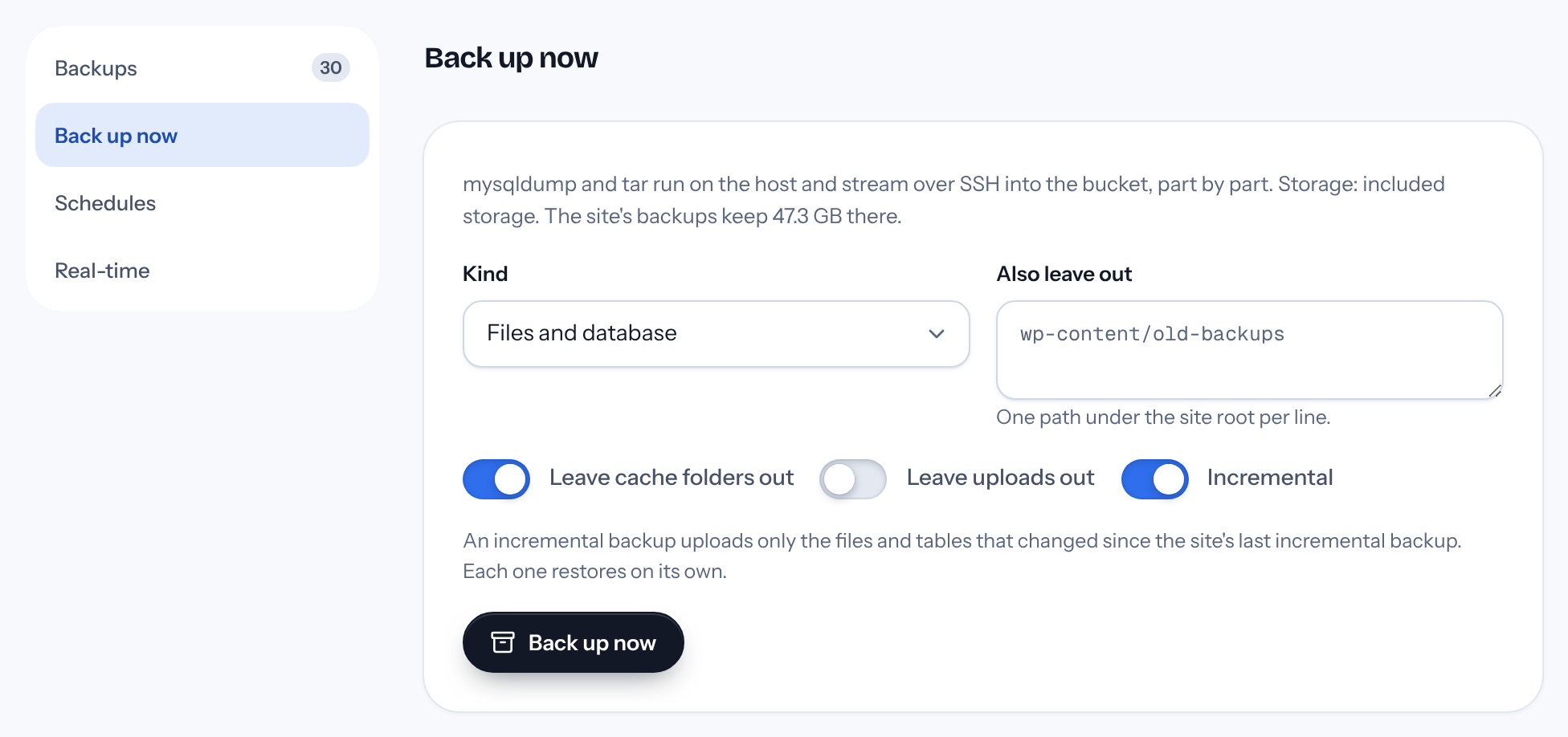
- Choose Files and database, Database only or Files only.
- Also leave out skips folders you don't need, one path under the site root per line. You can also leave cache folders, uploads, and the archives other backup plugins keep (UpdraftPlus, All-in-One WP Migration, Duplicator, WPvivid and similar) out. Cache folders and other plugins' archives are left out by default.
- Leave log files out skips log files anywhere in the site: files named
*.log(such asdebug.log), rotated logs likeaccess.log.1anderror.log.gz,error_logandphp_errorlog. It's on by default. A log grows all the time, and a changed file is uploaded again whole, so one large log can make every incremental backup as big as the log. A site doesn't need its logs to run. A restore leaves the logs on the site as they are, and an older backup that still holds a log brings it back. The backup log says how many log files it left out. Over the connector it needs connector 0.8.3 or later; an older connector keeps the logs in full backups. - Incremental uploads only the files and tables that changed since the site's last incremental backup. Each one still restores on its own. It needs SSH or connector 0.4.0 or later. Use it for large sites.
Schedules
Backups → Schedules on a site, or on the Backups page for many sites at once, runs backups on their own.
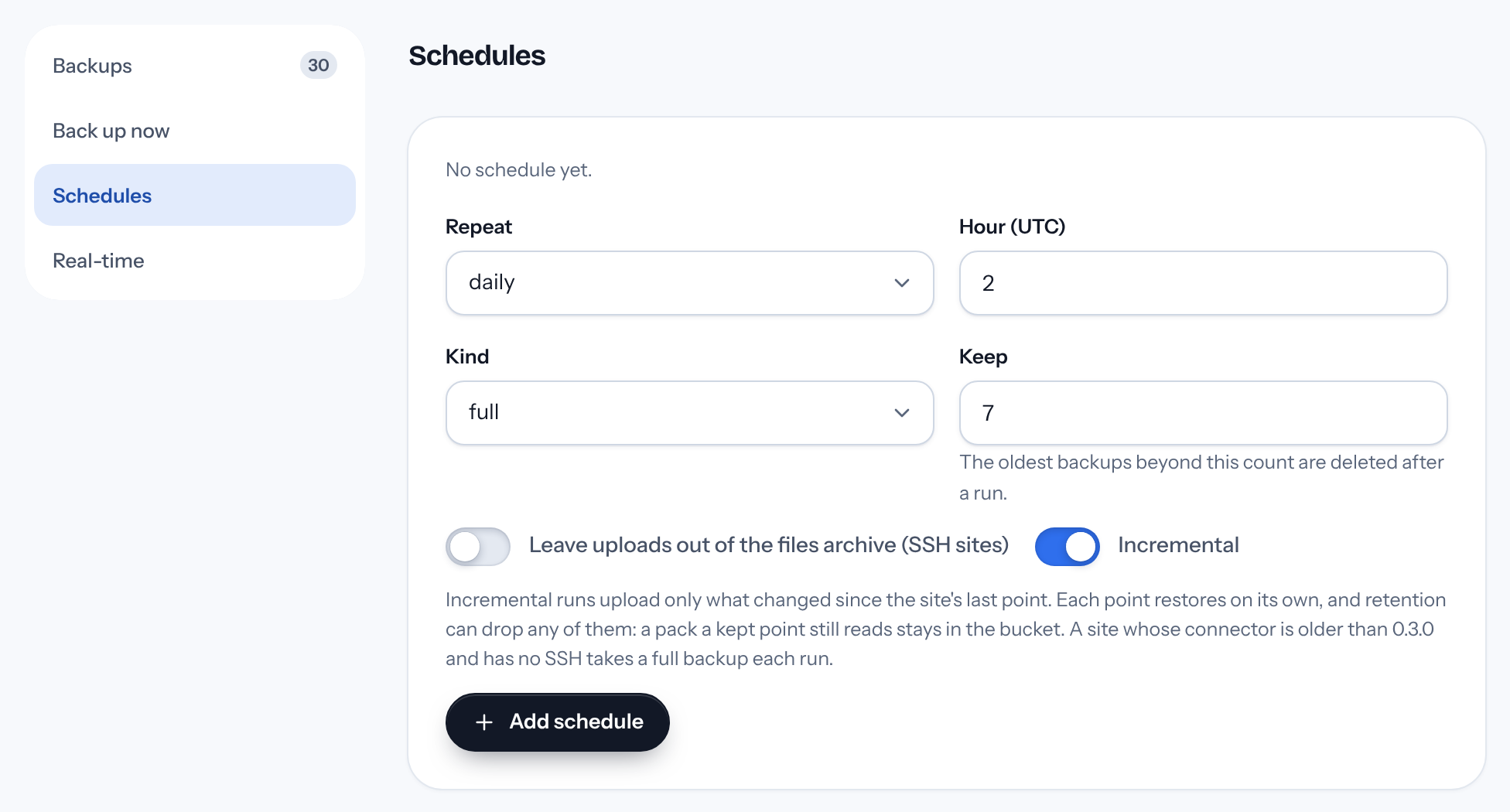
A schedule runs daily or weekly at an hour (UTC), takes full, database or files backups, and keeps a number of backups: after each run, the oldest backups beyond that count are deleted. On the Backups page a schedule can cover every site with a tag or in an environment, so new sites are included without changes.
Email a report when the run finishes sends one email for each run of the schedule once all its backups have finished. The email counts the backups that are OK, complete with warnings, and failed, and gives one line per site: its result, the size the backup added and how long it took. Failures and warnings come first, with their errors. A run that is still going when the schedule's next run is due, or 24 hours after it started, is reported then, and its unfinished backups show as still running. The report goes to the alert address under Settings → Delivery, or without one to the account's owners and admins, and to up to 5 more addresses you add. It's off until you turn it on, in the form or with Report next to a schedule.
Real-time backups
With Real-time on, the connector logs each post, order, comment, upload and setting as WordPress saves it, and WPkeeper backs up the changes every five minutes. These points are kept for 48 hours, on top of the scheduled backups. You can restore a site to any point, and keep the WooCommerce orders made since, so a restore never loses a sale.
Real-time backups are on by default for WooCommerce sites. Change the default in Settings → Backup storage, or turn it on or off for one site on its Backups → Real-time tab. They need connector 0.4.0 or later.
Plugins and themes from a backup
Press Plugins on a backup to see the plugins, themes and must-use plugins it holds, with the name and version from each one's header and its size. Each one downloads on its own with .zip, without the rest of the backup:
- get back the exact version of a plugin from before an update broke the site;
- get the files of a premium plugin you can no longer download;
- compare a plugin between two dates.
The zip holds the plugin's folder, so it installs as it is from Plugins → Add New → Upload Plugin in WordPress, on this site or another one. A single-file plugin such as Hello Dolly downloads as the file alone. Tick several and press Download … in one zip to get them together, in the folders they unpack to inside wp-content. A hard-linked file comes whole. A symbolic link comes as a copy of the file it points to when that file is in the same plugin; a link to a folder, or to anything outside the plugin, is left out, and the list says how many.
This works for every backup with files, incremental or not, over SSH or the connector, and for encrypted backups, which WPkeeper decrypts on the way. The first time you open a backup's list, WPkeeper reads it from storage, which can take a minute on a large site; after that the list opens at once. Members and above can download plugins, and each download is recorded in the account's audit log.
Restore or move a site
Press Restore on a backup to put it back on the same site. You confirm first: the site's files, database or both are replaced. wp-config.php and the connector stay as they are.
To copy a site to another site, for example from staging to production, open the site you are copying, go to Settings → Migrate and pick the target site. WPkeeper restores the backup on the target and replaces the URLs in its database. The target needs SSH.
All backups
The Backups page lists the backups of every site, with filters by site and status, and shows how much storage you use.
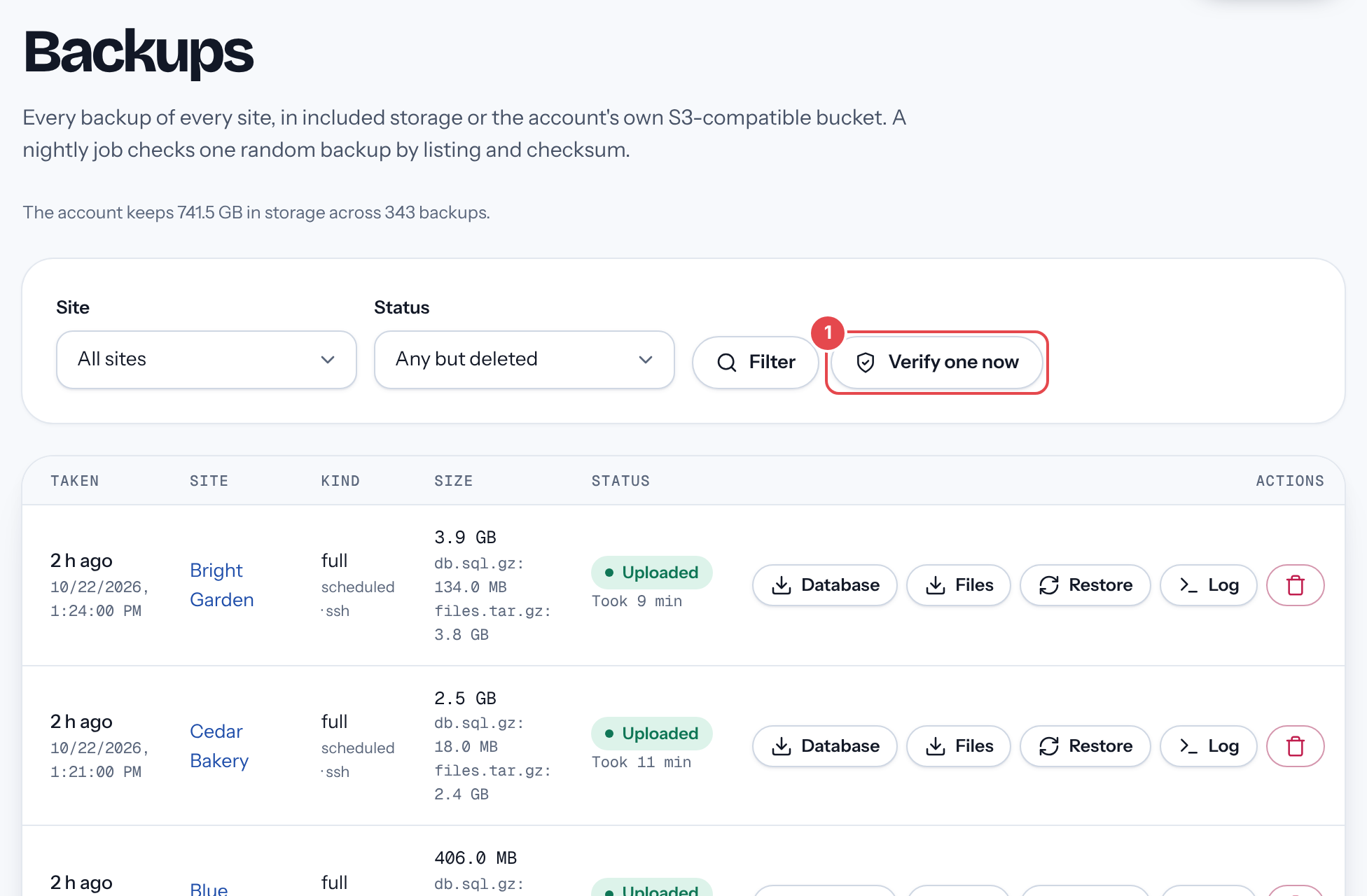
- Every night WPkeeper picks one random backup per account, lists its parts and checks their checksums. Verify one now runs that check at once. A backup that fails the check raises an alert.
Backup storage
Settings → Backup storage sets where new backups go.
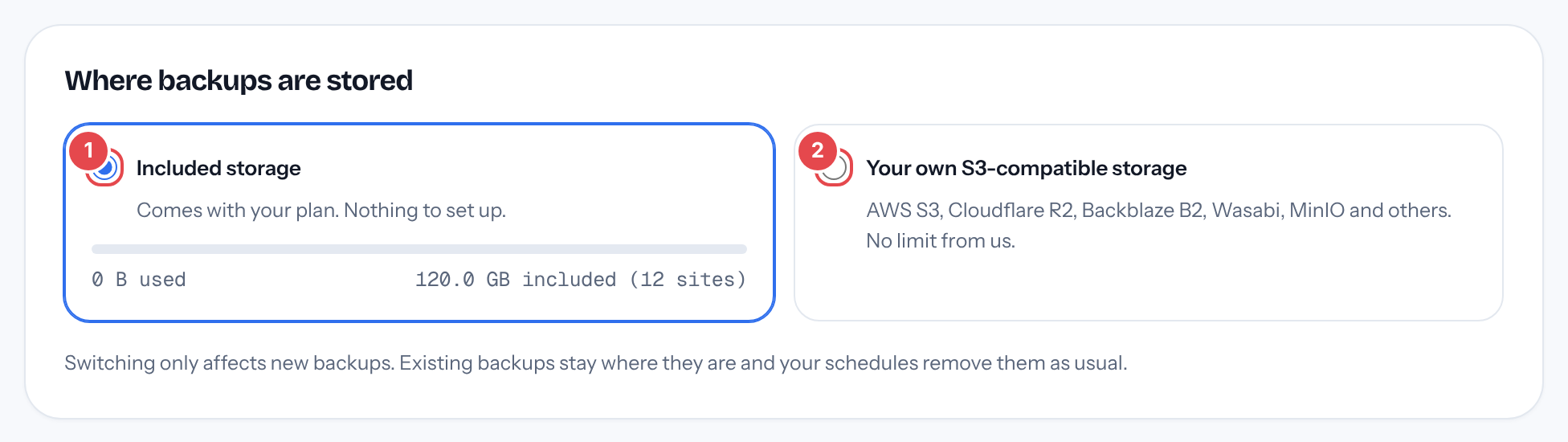
- Included storage comes with your plan. Nothing to set up. The bar shows how much you use of your allowance.
- Your own S3-compatible storage sends backups to your own bucket: AWS S3, Cloudflare R2, Backblaze B2, Wasabi, MinIO and others. Enter the endpoint, bucket, keys and region, and press Test storage.
Copy to a second storage, on the same page, copies every finished backup to another bucket as well. If a restore cannot read the first storage, it uses the copy; you can also restore from the copy on purpose. Deleting a backup, or a schedule removing old ones, removes the copy too, and you get a "Backup copy failed" alert when a copy keeps failing.
Encryption, on the same page, explains how backups are protected. Every new backup is encrypted with your account's own key before it reaches storage, so the storage provider, a leaked bucket key or a leaked link can't read it. Sites with the connector only get the public half of the key, so even a hacked site can't open its own backups. Restores and downloads go through WPkeeper, which decrypts them on the way. Use a new key starts a new key for later backups; earlier backups keep opening with their old key. Sites need connector 0.8.0 or later for their backups to be encrypted; backups of sites on an older connector, and backups made before encryption, stay unencrypted and work as before.
Switching only affects new backups. Earlier backups stay where they were written and remain downloadable and restorable. Your keys are kept encrypted and never sent to sites or browsers.
Questions
What happens when the included storage is full?
At 80 % you get a "Backup storage almost full" alert. At 100 % new backups pause until you free space: lower the number a schedule keeps, delete old backups, or switch to your own storage. A deleted backup counts until its trash period ends. Nothing is deleted for you.
How big can a site be?
There is no fixed limit. For sites of tens of gigabytes, use incremental backups: over SSH they are split into packs that upload three at a time, each over its own connection, and resume where they stopped if a connection drops. A restore over SSH downloads them three at a time too.
Only the first incremental backup of a site sends everything; later ones send only what changed.
What happens to a backup when the panel stops?
A restart, such as an update of WPkeeper, pauses a running backup, and it continues once the panel is back. If the panel stops without warning, the backup continues on its own after 2, 10 and then 30 minutes, and fails with a "Backup failed" alert if it stops a fourth time. A backup that stops again after about as much data as the try before it fails at once instead: it would most likely stop there again. Its log says how much memory the panel used before each stop, and "probably out of memory" when that is the likely cause.
Over SSH, each try keeps what the ones before it finished: the parts already in your storage, a finished database dump, and each files pack with the same files, so only files deleted in between change what it sends. Resume on the backup's page continues a failed backup the same way.
What does "complete with warnings" mean?
The backup finished, but the dump of one or more tables failed, and the backup names them with the error. Often the cause is temporary: Error 1412 means a plugin changed the table during the dump, and Error 2013 means the database server dropped the connection, sometimes because a row is larger than max_allowed_packet. WPkeeper already tried each table twice. The backup keeps the copy an earlier backup made of the table, and the next backup tries it again. If it keeps failing, ask the host about the error, or check the table with wp db check.
Why is a backup slow?
A backup reads the site's files, compresses them and sends them to WPkeeper, and the slowest of the three sets the speed. Before a large backup over SSH (1 GB or more to send), WPkeeper runs a short speed test and writes the result in the backup's log, for example "the connection to the panel is the slowest step". Reading files and compressing them depend on the site's host, which often limits them on shared hosting; the connection depends on the distance to the site and its network.
Can my client download their own backups?
Yes, if you allow it. Share the site with the client and tick Download backups; see Team members and client access. The same permission lets them download single plugins and themes from a backup.